
Your stores
The organization page lists every store with its logo, creation date, platform and platform store ID, with a search box to filter by name. Create Store opens the same form as onboarding: name, optional logo URL, platform, and the platform store ID, which is validated against the platform before the button enables.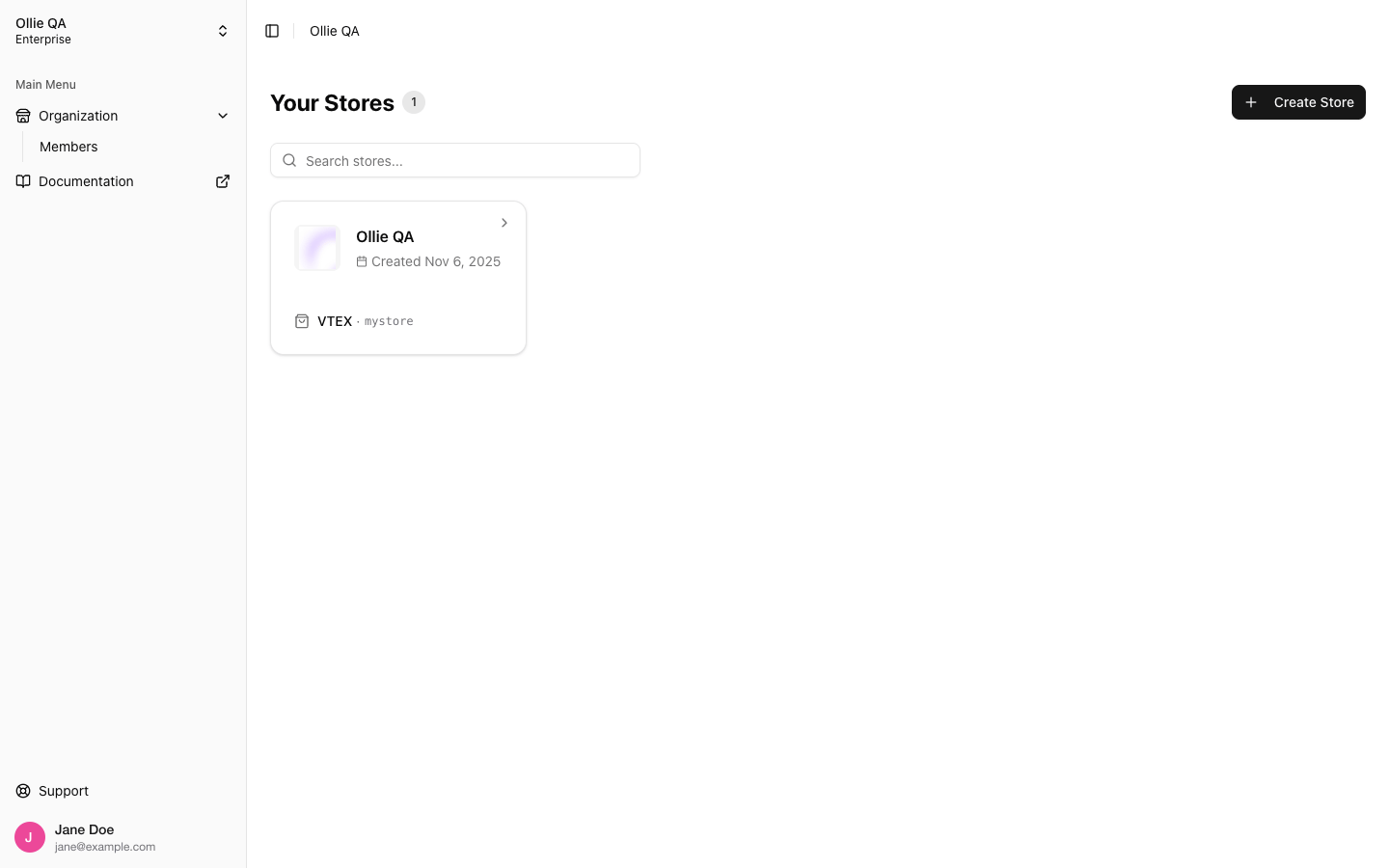
The organization page: all stores you can access, and the Create Store action
Members
Open Organization → Members in the sidebar of the organization page.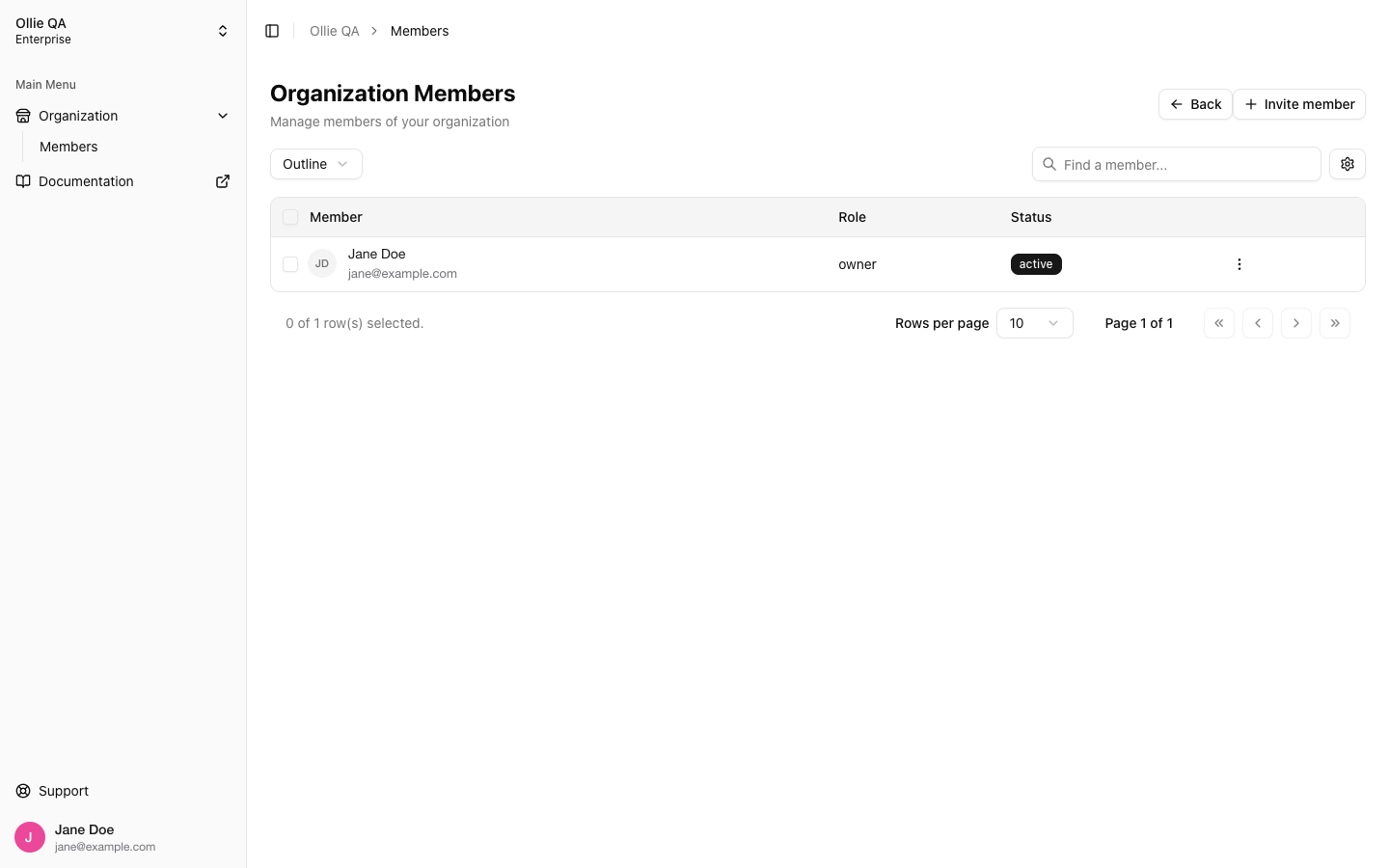
Organization Members: every member and pending invitation, with role and status
active or invited. Pending invitations sit in the same list with the invited status until the person accepts.
Inviting someone
- Click Invite member. The button is visible to owners and admins only.
- Enter the Email address and pick a Role: Admin or Member. The owner role cannot be granted here.
- Click Send invitation.
Removing someone
Open the row menu and choose Remove member, then confirm. The owner cannot be removed. A pending invitation has no actions in the list; it simply expires after 7 days if it is not accepted.Role changes, ownership transfer and leaving an organization are handled by Ollie support.
Roles
A member’s role applies to every store of the organization. There are no per-store roles.Related
- Store Settings: the per-store configuration owners and admins manage
- Environment Variables: the store secrets governed by the roles above