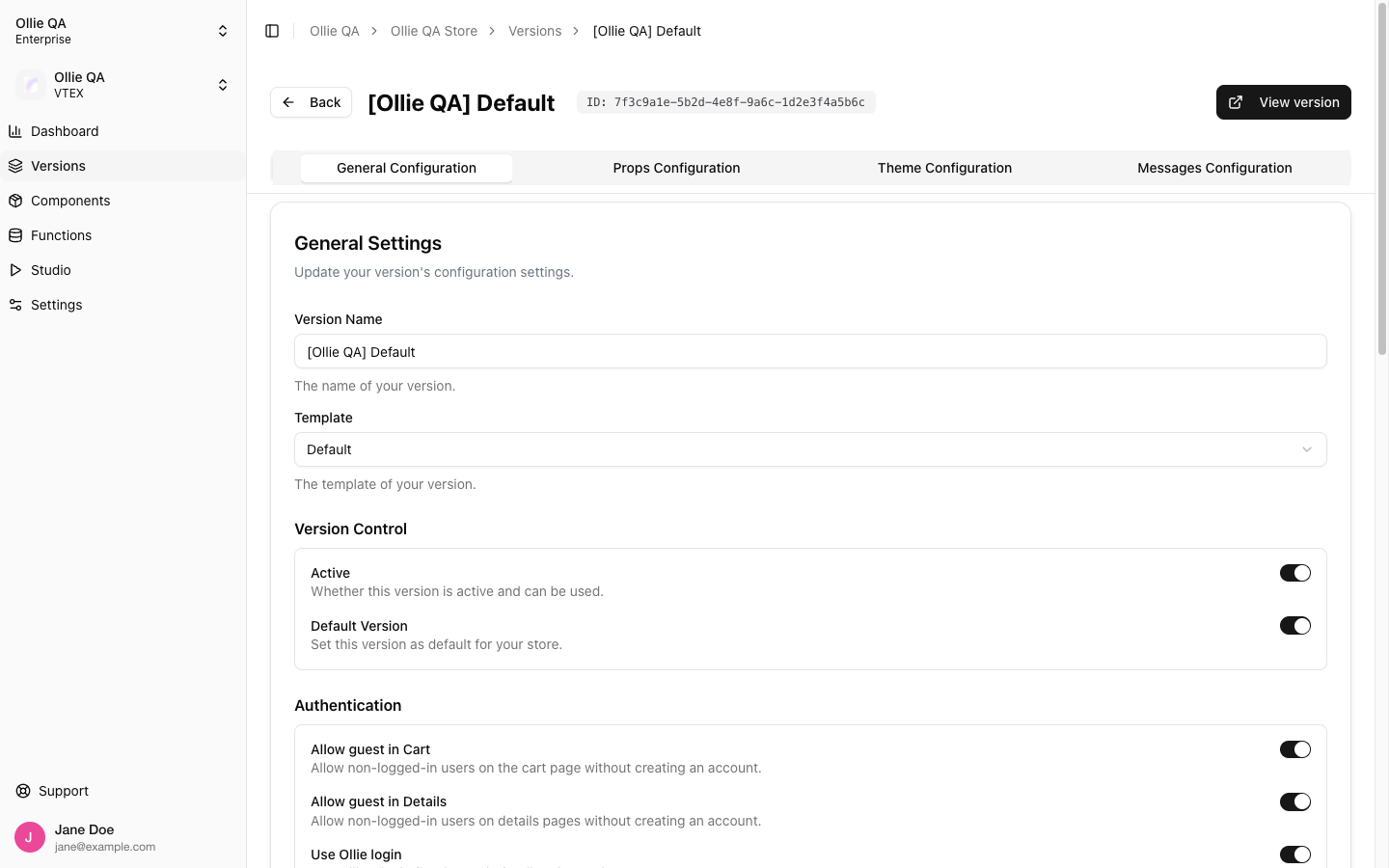
When enabled, users will see Ollie’s built-in login modal directly in the checkout instead of being redirected to your e-commerce platform’s login page. This provides a seamless checkout experience without leaving the current page.
Configuration
The Ollie Login is configured in the General Settings of a Version.
- Go to your Store in the Admin Dashboard
- Select the Version you want to configure
- In Checkout Settings, find the Use Ollie login toggle
- Enable or disable as needed
When disabled, clicking “Login” will redirect the user to your e-commerce platform’s native login page.
Behavior
| Setting | Behavior |
|---|
| Enabled | Opens a login modal within the checkout (no page redirect) |
| Disabled | Redirects to your platform’s login page (VTEX, Shopify, etc.) |
The login behavior works together with other guest settings in the same section:
| Setting | Description |
|---|
| Allow guest in Cart | Allow non-logged-in users to access the cart page |
| Allow guest in Details | Allow non-logged-in users to access the details/shipping page |
| Use Ollie login | Use the native Ollie login modal instead of redirecting |
If you disable guest access and disable Ollie login, users will be redirected to your platform’s login page before accessing the checkout.
SDK Integration
To programmatically control the login modal in your custom components, use the useLogin hook from the SDK.
import { useLogin } from '@ollie-shop/sdk';
const { openLogin, closeLogin } = useLogin();
// Open the login modal
openLogin({ isRequired: true, title: "Sign in to continue" });
See useLogin for full API reference.