
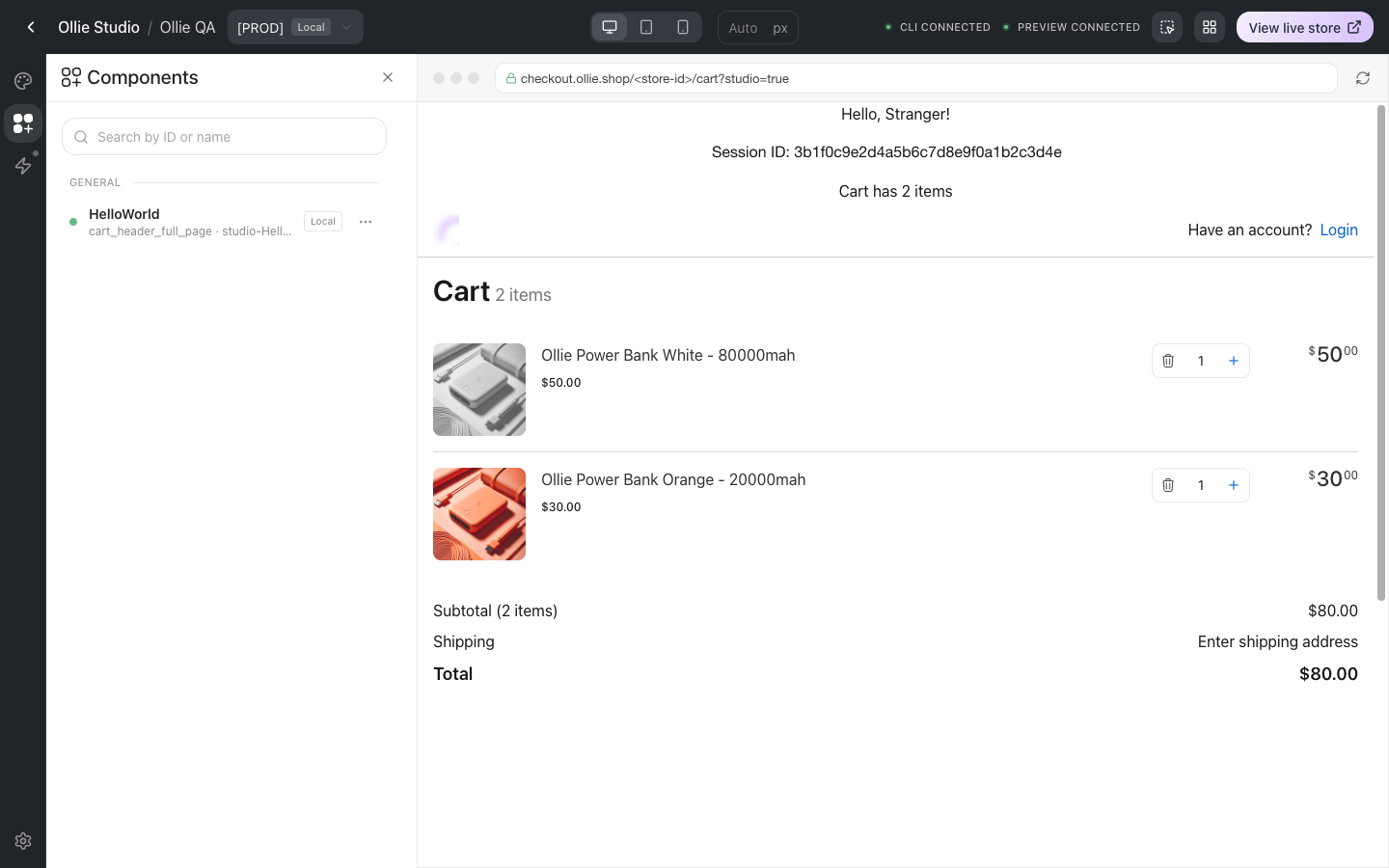
Studio with a local project connected: stage selector and connection status in the header, the Components tab on the left, and the real checkout on the right rendering the local HelloWorld component in its slot
Opening Studio
- From the Admin, open your store and click Studio in the sidebar. It opens in a new tab at
admin.ollie.shop/studio?storeId=<store-id>. - From a project,
npm start(which runsollieshop start) opens Studio for the store in yourollie.jsonand connects it to the dev server. Pass--no-opento skip the browser.
How it works
Studio is a bridge between three things:- The dev server in your project builds every component it discovers and exposes a manifest. When you save a file, it rebuilds and notifies Studio.
- Studio reads the manifest, shows your components in the sidebar, and pushes each component’s code into the preview. It pushes again on every rebuild, so the preview hot-reloads.
- The preview is your real checkout, loaded in Studio mode. Everything the shopper sees (cart, shipping, payment, totals) is real for the version you selected; only the components you are working on come from your machine.
Nothing you do in Studio changes your store until you Save or Publish. Previewing a local component, switching device sizes, or navigating the preview is invisible to shoppers.
What you can do from Studio
What Studio does not do: it does not edit code. Your component source stays in your project and your editor; Studio shows the result. The Functions tab is marked coming soon, so functions are still created and configured in the Admin and deployed with the CLI.
The main workflows
Preview and iterate
Start the dev server, open Studio, and open the Components tab. Every component in your project is listed, grouped by slot. Click one to open its props panel. Edit the file in your editor; the preview updates on save. An unlinked component (one your store does not know yet) shows a temporarystudio-* id and only renders once it has a slot. Set the slot in the props panel, or in the component’s ollie.json entry.
Edit props without a deploy
For a linked component, the props panel is the fastest way to change behaviour that the component reads from props: switch between the Visual form and raw JSON, change the slot, toggle active, then Save changes. The checkout picks the new values up on its next load. No build and no CLI involved. See Props.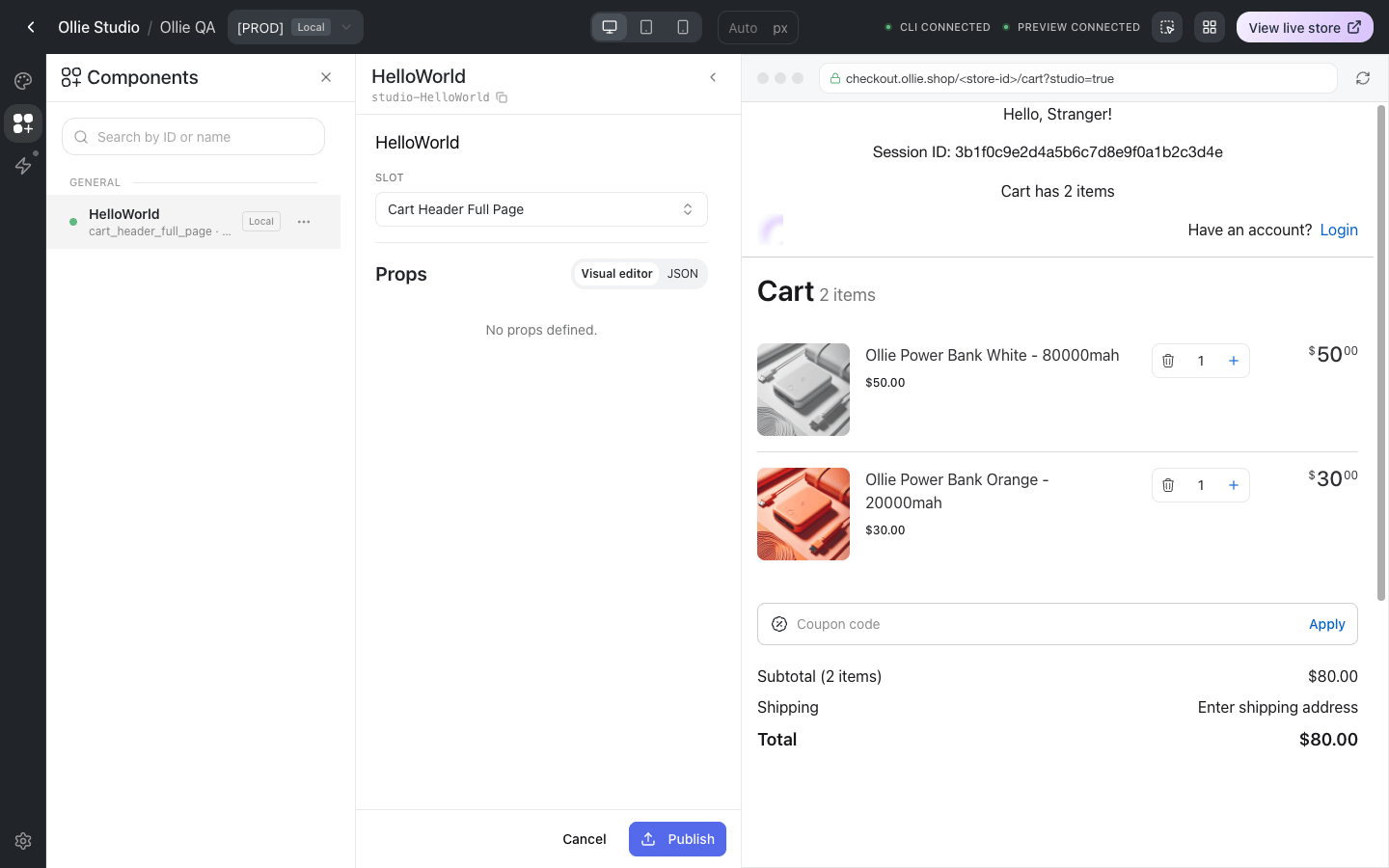
The props panel of an unlinked component: slot picker, Visual/JSON props editor, and the Publish button
Publish and deploy
- An unlinked component gets a Publish button once it has a slot. Publish creates the component record in the selected version, bundles your local code, uploads it, and follows the build until it finishes. The CLI then writes the new id into your
ollie.json, so the folder is linked from then on. - A linked component has a Deploy action in its card menu. Select several cards to deploy them together with Deploy (N).
Theme
The Theme tab edits the design tokens of the selected version: brand, neutral and system colors, shape and size presets, plus any custom token under Advanced Customization. Each color pair shows its contrast ratio against the WCAG AA and AAA thresholds. Save changes writes the theme to the version; Reload preview shows it in the checkout. See Theme for the token names.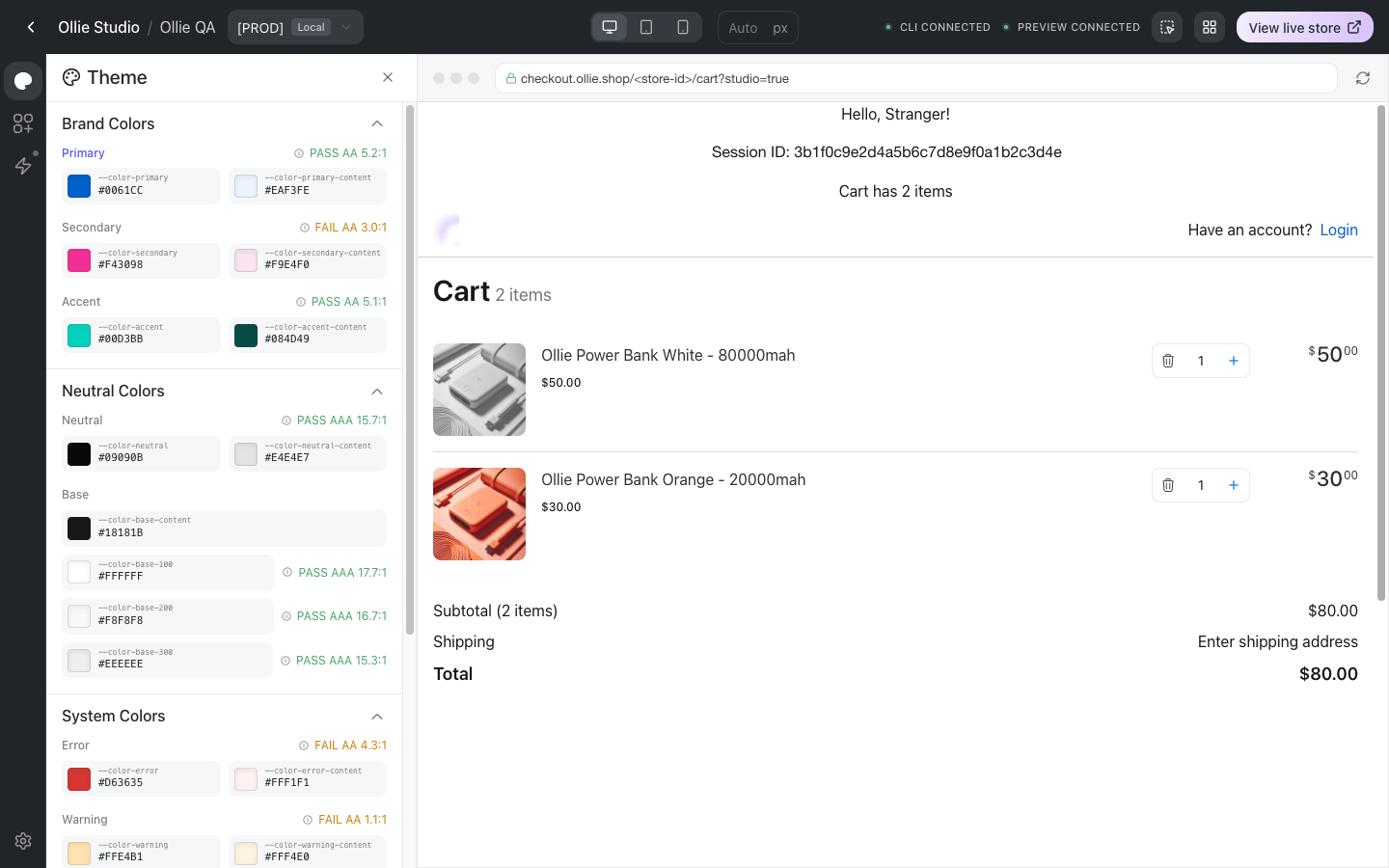
The Theme tab: token pairs grouped by section, each with its contrast rating
Inspect slots
Turn on Inspect slots in the header and hover the preview: the slot under the pointer is outlined and labelled with its id. Right-click it to Copy slot id, or to Edit in studio, which opens the component currently rendered there. This is the quickest way to answer “which slot is this?” when you plan a customization.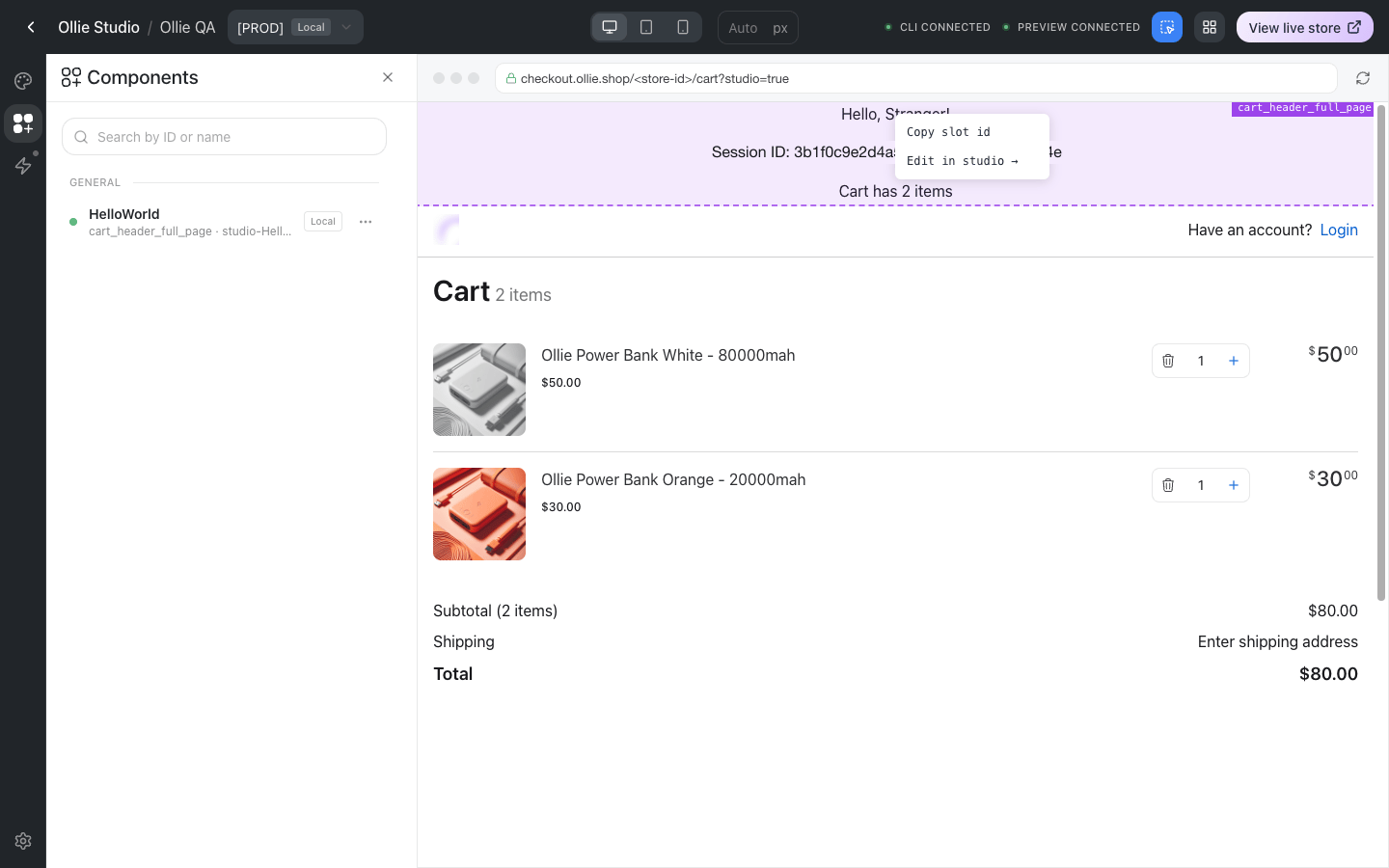
Slot inspector: the hovered slot is outlined and labelled, and a right-click offers Copy slot id and Edit in studio
Versions and stages
Without a dev server, the header selector lists your store’s versions, with the live one marked. With a dev server running on a project that uses theollie.json components map, the selector switches to your project’s stages instead (ollie.json is prod, ollie.<stage>.json the others), so you can preview the components each stage links against its own version.
Next steps
Studio reference
Every tab, button and status, plus troubleshooting
Quickstart
Scaffold a project and publish your first component from Studio
Slots
What a slot is and how components fill them
Theme
The tokens the Theme tab edits