
formFieldsController prop, without touching any component.
Typical reasons: a carrier that rejects long street names, a platform that only accepts digits in the house number, or a market where the default character rules are too strict.
Where to edit
Admin → Versions → your version → Props Configuration → Custom props. Click Add Form config in the empty state, or + Add Prop and pick Form config from the list, then edit the JSON and click Save Changes.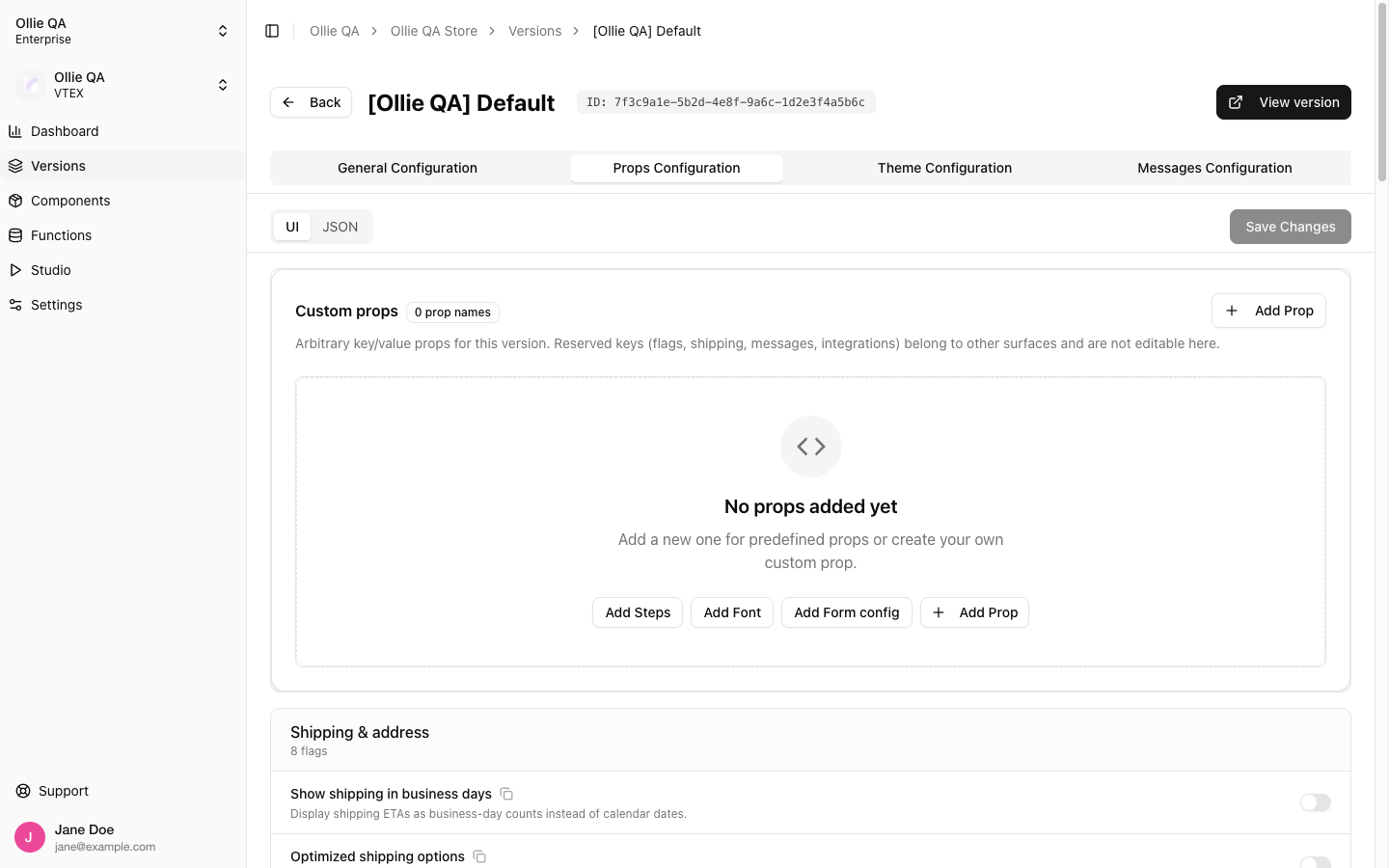
The Custom props block with its presets
Shape
- A field you leave out keeps the built-in rules.
- For a field you include, your
regexlist replaces the built-in patterns for that field, andmaxLengthreplaces the built-in limit. Include every pattern you still want. - Patterns are tested with the Unicode flag, so
\p{L}works. - When a pattern fails, the shopper sees the message with key
addressForm_<id>. Two ids ship with messages in every locale:specialCharsValidationMessageandlettersOnlyValidationMessage. For a new id, add theaddressForm_<id>message in the Messages tab.
Example
Allow only digits in the house number, keep the standard character rule on the street with a shorter limit, forbid digits in names, limit the contact phone, and shorten the cardholder name:formFieldsController
digitsOnlyValidationMessage id above is new, so pair it with a message in the ui row of the Messages tab:
ui
Remember to escape backslashes in JSON:
\d is written \\d.Related
- Translations: the messages the validation ids point to
- Checkout Flags: the other settings on the Props tab
- Managing Versions: how the Props tab saves