
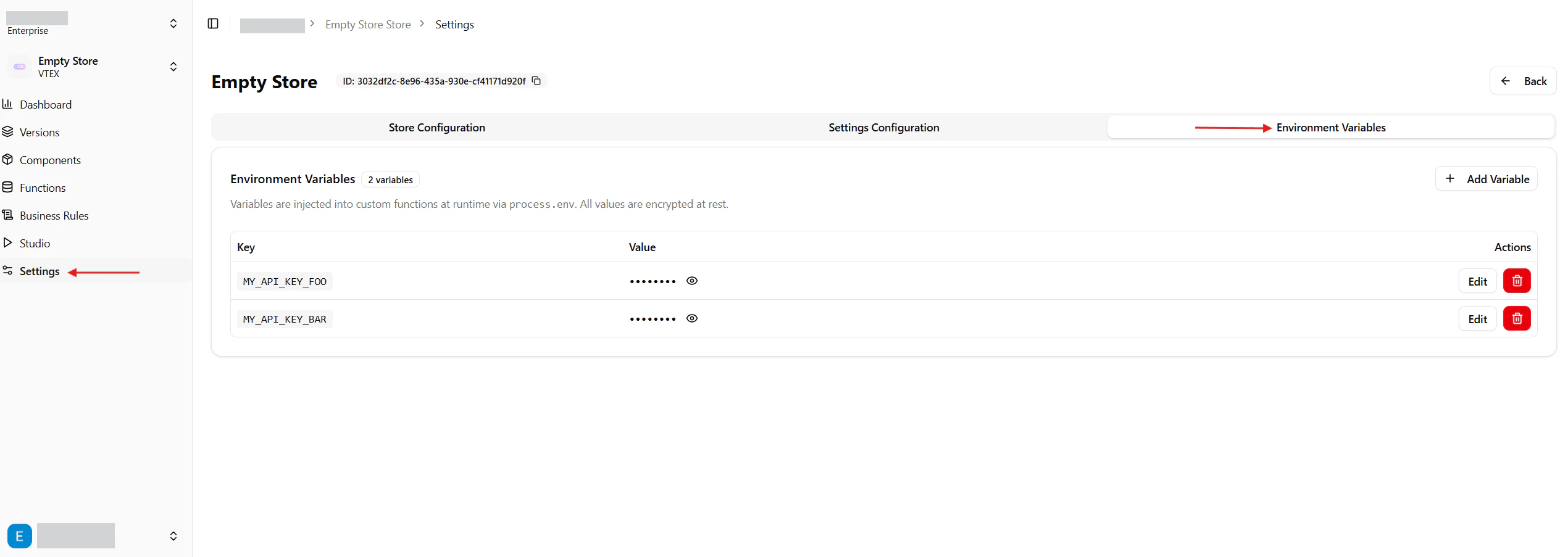
Where to find it
In the Admin, open your store and switch to the Environment Variables tab. You will see the list of variables already defined for the store, with values masked by default.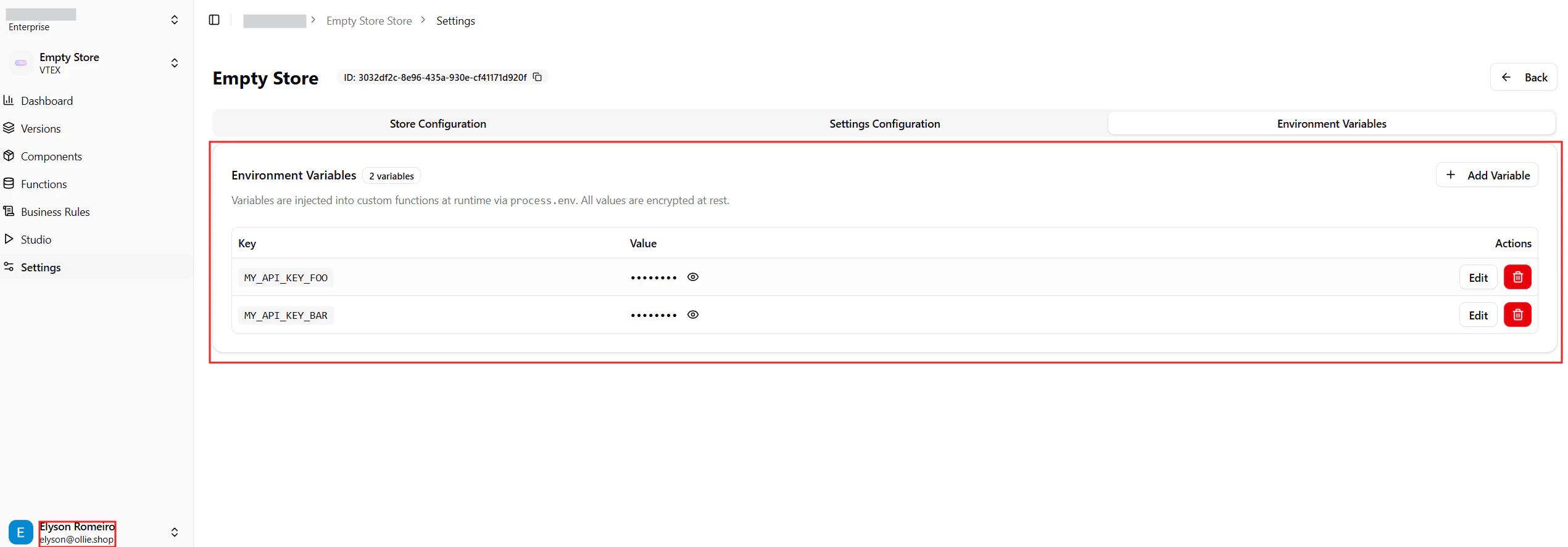
How they are used
At runtime, every variable defined for a store is injected into the custom functions of that store and is available throughprocess.env.
Variables are scoped to a single store. Two stores can define the same key with different values without colliding.
Adding a variable
Click Add Variable to open the side drawer, then provide a Key and a Value.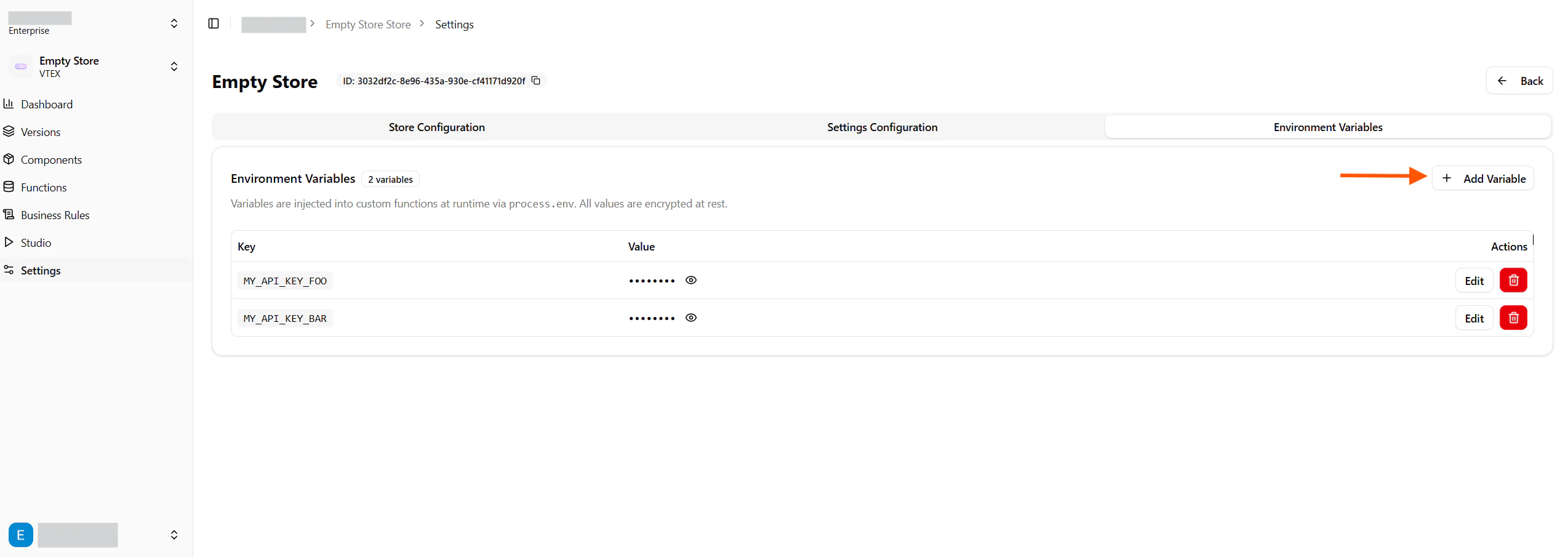
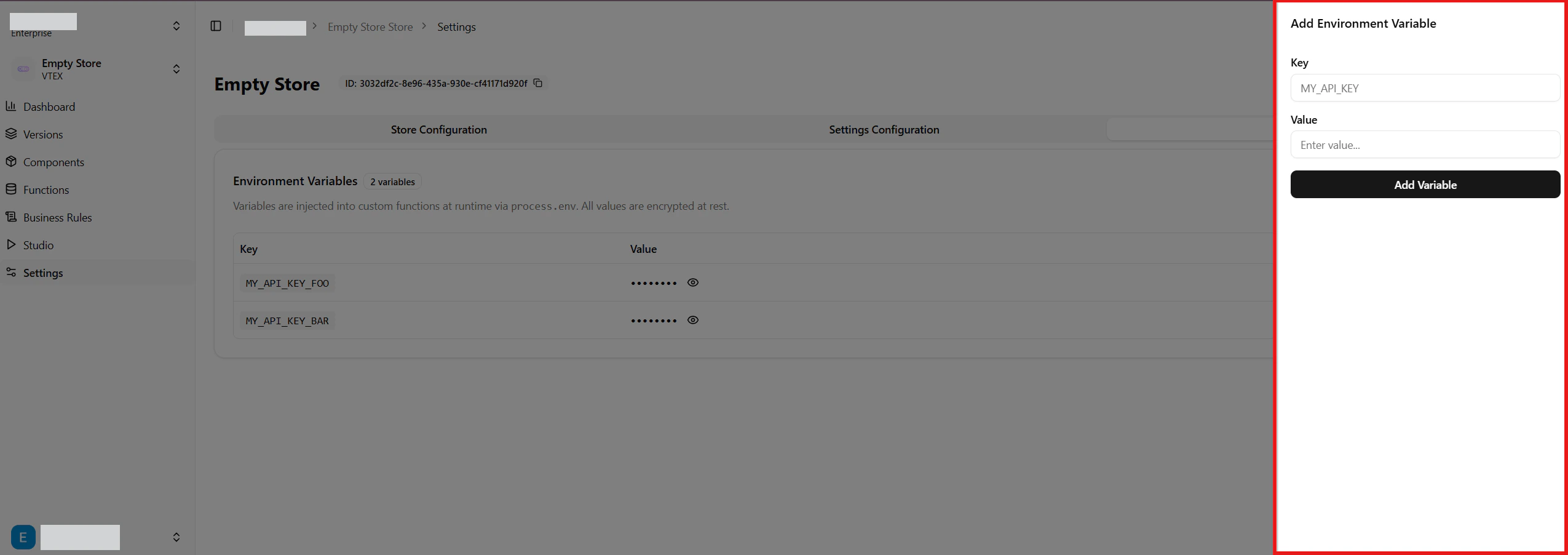
Key rules
- Must match the regex
^[A-Z_][A-Z0-9_]*$— uppercase letters, digits and underscores, starting with a letter or underscore (e.g.MY_API_KEY,_INTERNAL_TOKEN). - Must be unique within the store.
- Cannot use reserved keys or prefixes (see below).
Reserved keys
The following keys are reserved by the runtime and will be rejected:OLLIE_ is also reserved for internal use.
Editing and deleting
Use the Edit button on a row to change the value (and optionally rename the key). Use the trash icon to delete — a confirmation dialog will ask you to confirm, since the action cannot be undone. The eye icon next to a value reveals the plain-text content. Values are masked by default to avoid accidental exposure when sharing your screen.Permissions
Managing environment variables requires you to be an owner or admin of the store. Members with lower roles can read variables (when the UI displays them) but cannot create, update or delete.Security
- Values are stored encrypted at rest using Supabase Vault — they are never persisted as plain text in the database.
- Decryption happens only when a function is invoked, on the server side; values never reach the browser except in the Admin UI when you explicitly reveal them.
- Treat these variables as secrets: avoid logging them, and rotate them if you suspect exposure.