
Rolling back changes what the storefront serves, not what’s in Code Management. Your code stays exactly as it is, so the next build you publish goes out normally.
How it works
Every build publishes its files into a folder of its own, and your component points at one of those folders. Rolling back moves the pointer.Rolling back
1
Open the component's Builds tab
Go to store → Components, open the component, and switch to Builds. Each row is one build: when it ran, who started it, and its log.
2
Click Roll back on the build you want
The row that’s live is marked Current and has no button; every other row offers Roll back.
3
Read what the dialog says
It checks that the build’s files are still there, then shows you what’s serving now and what will serve after. If the build can’t be rolled back to, it tells you why instead of offering the button.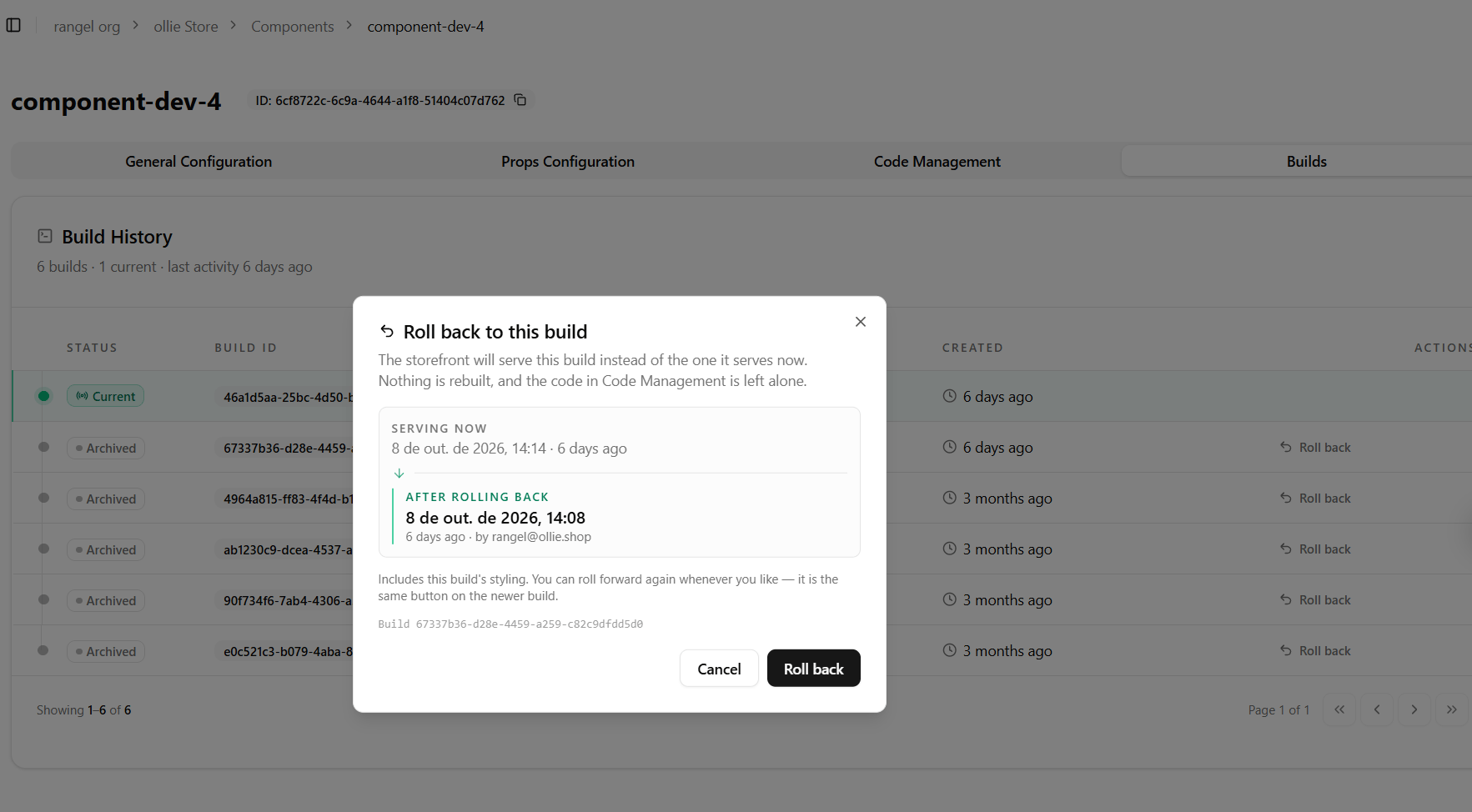
4
Confirm
Click Roll back. The component is repointed, the build list updates, and the storefront picks it up on its next refresh.
Rolling forward again
A rollback isn’t one-way and isn’t special: the build you just left is now an ordinary row with its own Roll back button. Clicking it puts you back where you were. Nothing is deleted by a rollback, so this stays true however many times you go back and forth.When a build can’t be rolled back to
The dialog refuses rather than letting you publish something broken. Each message means a different thing:After a rollback
Shoppers get it on their next page load. Dropping the checkout’s cached copy of your store is part of the rollback, not something that happens later on a schedule, so there is no cache for you to wait on and nothing for you to clear by hand. The one exception: if the admin can’t reach the checkout at that moment, the rollback still stands and the storefront picks it up on its own within five minutes. That’s the only case where you’d wait, and it’s why the confirmation says the storefront picks the build up rather than claiming it’s already serving it. The Builds tab follows. The build you rolled back to takes the Current badge. If you ever see a success message saying the build list couldn’t be updated, the rollback itself still worked; only the badge is stale, and the next build fixes it. Styling travels with the build. A build’s stylesheet lives in the same folder as its code, so you always get the pair that was published together, never one build’s code against another build’s styles. The dialog tells you up front whether the build you picked has styling of its own.Rolling back doesn’t touch Props. If the broken deploy also changed a prop, change it back on the Props tab; the two are independent.