> ## Documentation Index
> Fetch the complete documentation index at: https://docs.ollie.shop/llms.txt
> Use this file to discover all available pages before exploring further.
# Roll Back a Component
> Put an earlier build of a component back in front of shoppers from the Builds tab, without rebuilding anything or finding the old code
A component goes out, and something is wrong with it. The fastest fix is rarely a new deploy — it's the build that was working ten minutes ago.
Rolling back puts that build back in front of shoppers. It doesn't rebuild anything, it doesn't need the old code, and it takes one dialog. You'll find it in the Admin dashboard at **store → Components → *your component* → Builds**.
Rolling back changes **what the storefront serves**, not what's in Code Management. Your code stays exactly as it is, so the next build you publish goes out normally.
## How it works
Every build publishes its files into a folder of its own, and your component points at one of those folders. Rolling back moves the pointer.
```
build A ──▶ components/// ◀── rolling back points here
build B ──▶ components///
build C ──▶ components/// ◀── serving now
```
Because a folder is never rewritten, an older build's files are still exactly as that build left them. That's the whole reason a rollback can be instant: there's nothing to rebuild, just a different folder to point at.
## Rolling back
Go to **store → Components**, open the component, and switch to **Builds**. Each row is one build: when it ran, who started it, and its log.
The row that's live is marked **Current** and has no button — every other row offers **Roll back**.
It checks that the build's files are still there, then shows you what's serving now and what will serve after. If the build can't be rolled back to, it tells you why instead of offering the button.
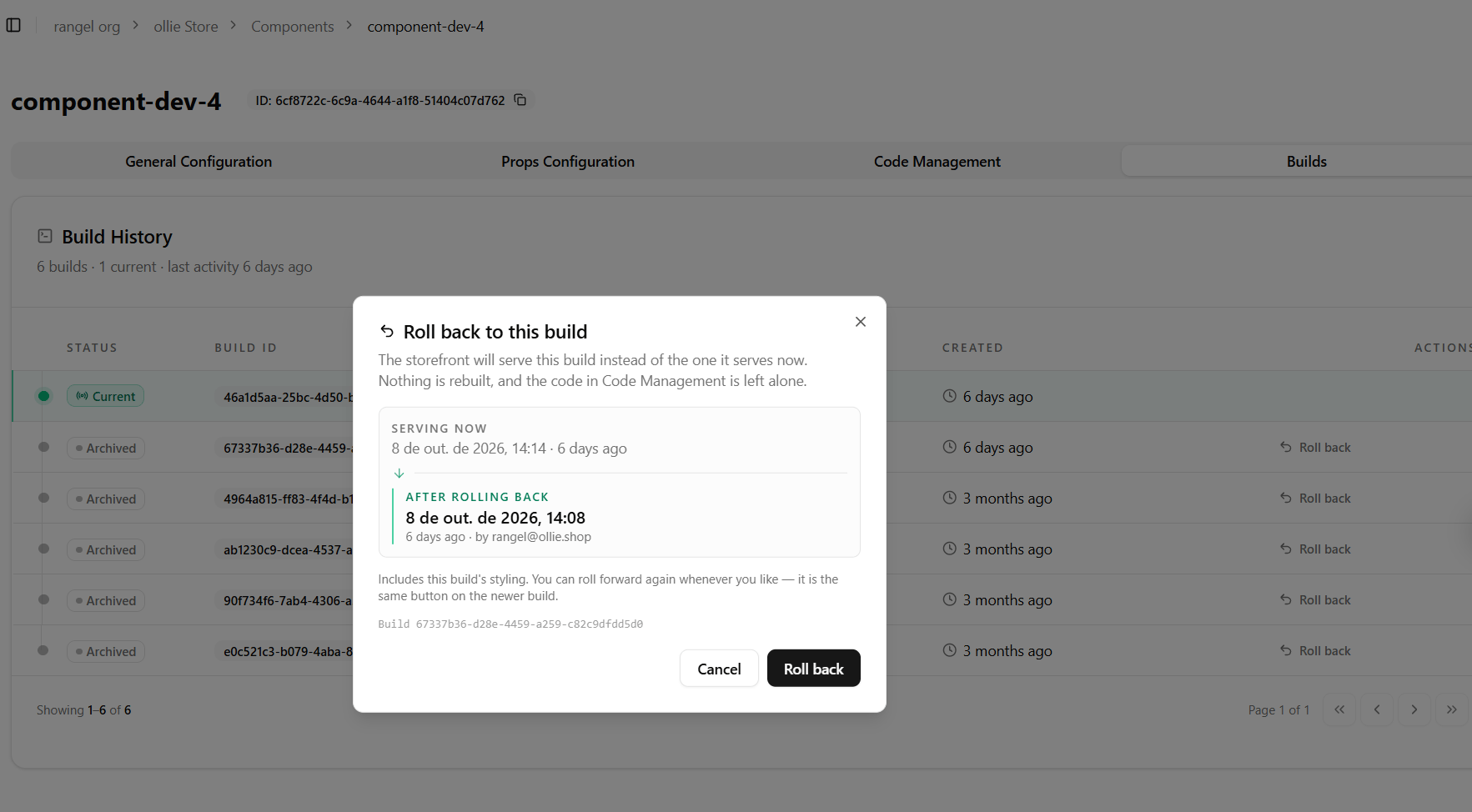 Click **Roll back**. The component is repointed, the build list updates, and the storefront picks it up on its next refresh.
## Rolling forward again
A rollback isn't one-way and isn't special: the build you just left is now an ordinary row with its own **Roll back** button. Clicking it puts you back where you were.
Nothing is deleted by a rollback, so this stays true however many times you go back and forth.
## When a build can't be rolled back to
The dialog refuses rather than letting you publish something broken. Each message means a different thing:
| What it says | What's going on |
| - | - |
| This build's files are no longer stored | The build predates folder-per-build. Those builds all shared one location, so this one was overwritten by the build that came after it. Its row survives; its files don't. |
| This build failed, so it left no files | The build never finished, so it published nothing. Its log is on the row behind the dialog. |
| Could not check whether this build's files are still stored | The check itself couldn't run. Rolling back blind could publish a build without its styling, so it isn't offered — try again in a moment. |
| This component already serves this build | Nothing to do. |
| This build never ran | The build was recorded but never started, so there's nothing to point at. |
| This component has never published a build | There's no earlier build to go back to. |
**Rollback history starts when folder-per-build shipped.** Builds from before it share a single location and were overwritten by whatever came next, so they can't be rollback targets however healthy their rows look in the table. Builds published since then stay available.
## After a rollback
**Shoppers get it on their next page load.** Dropping the checkout's cached copy of your store is part of the rollback, not something that happens later on a schedule — so there is no cache for you to wait on and nothing for you to clear by hand.
The one exception: if the admin can't reach the checkout at that moment, the rollback still stands and the storefront picks it up on its own within five minutes. That's the only case where you'd wait, and it's why the confirmation says the storefront picks the build up rather than claiming it's already serving it.
**The Builds tab follows.** The build you rolled back to takes the **Current** badge. If you ever see a success message saying the build list couldn't be updated, the rollback itself still worked — only the badge is stale, and the next build fixes it.
**Styling travels with the build.** A build's stylesheet lives in the same folder as its code, so you always get the pair that was published together — never one build's code against another build's styles. The dialog tells you up front whether the build you picked has styling of its own.
Rolling back doesn't touch **Props**. If the broken deploy also changed a prop, change it back on the Props tab — the two are independent.
This documentation is built and hosted on [Mintlify](https://mintlify.com), a developer documentation platform.
Click **Roll back**. The component is repointed, the build list updates, and the storefront picks it up on its next refresh.
## Rolling forward again
A rollback isn't one-way and isn't special: the build you just left is now an ordinary row with its own **Roll back** button. Clicking it puts you back where you were.
Nothing is deleted by a rollback, so this stays true however many times you go back and forth.
## When a build can't be rolled back to
The dialog refuses rather than letting you publish something broken. Each message means a different thing:
| What it says | What's going on |
| - | - |
| This build's files are no longer stored | The build predates folder-per-build. Those builds all shared one location, so this one was overwritten by the build that came after it. Its row survives; its files don't. |
| This build failed, so it left no files | The build never finished, so it published nothing. Its log is on the row behind the dialog. |
| Could not check whether this build's files are still stored | The check itself couldn't run. Rolling back blind could publish a build without its styling, so it isn't offered — try again in a moment. |
| This component already serves this build | Nothing to do. |
| This build never ran | The build was recorded but never started, so there's nothing to point at. |
| This component has never published a build | There's no earlier build to go back to. |
**Rollback history starts when folder-per-build shipped.** Builds from before it share a single location and were overwritten by whatever came next, so they can't be rollback targets however healthy their rows look in the table. Builds published since then stay available.
## After a rollback
**Shoppers get it on their next page load.** Dropping the checkout's cached copy of your store is part of the rollback, not something that happens later on a schedule — so there is no cache for you to wait on and nothing for you to clear by hand.
The one exception: if the admin can't reach the checkout at that moment, the rollback still stands and the storefront picks it up on its own within five minutes. That's the only case where you'd wait, and it's why the confirmation says the storefront picks the build up rather than claiming it's already serving it.
**The Builds tab follows.** The build you rolled back to takes the **Current** badge. If you ever see a success message saying the build list couldn't be updated, the rollback itself still worked — only the badge is stale, and the next build fixes it.
**Styling travels with the build.** A build's stylesheet lives in the same folder as its code, so you always get the pair that was published together — never one build's code against another build's styles. The dialog tells you up front whether the build you picked has styling of its own.
Rolling back doesn't touch **Props**. If the broken deploy also changed a prop, change it back on the Props tab — the two are independent.
This documentation is built and hosted on [Mintlify](https://mintlify.com), a developer documentation platform.