> ## Documentation Index
> Fetch the complete documentation index at: https://docs.ollie.shop/llms.txt
> Use this file to discover all available pages before exploring further.
# Passing Props to Custom Components
> Useful for custom components that are reused in different stores/versions where each requires a different configuration
Ollie Custom Components can receive properties configured directly in the Admin.
 This is useful when you have a custom component but would like to abe able to change some of it's behaviour without needing to make code changes.
## Example - Free Shipping Progress Bar
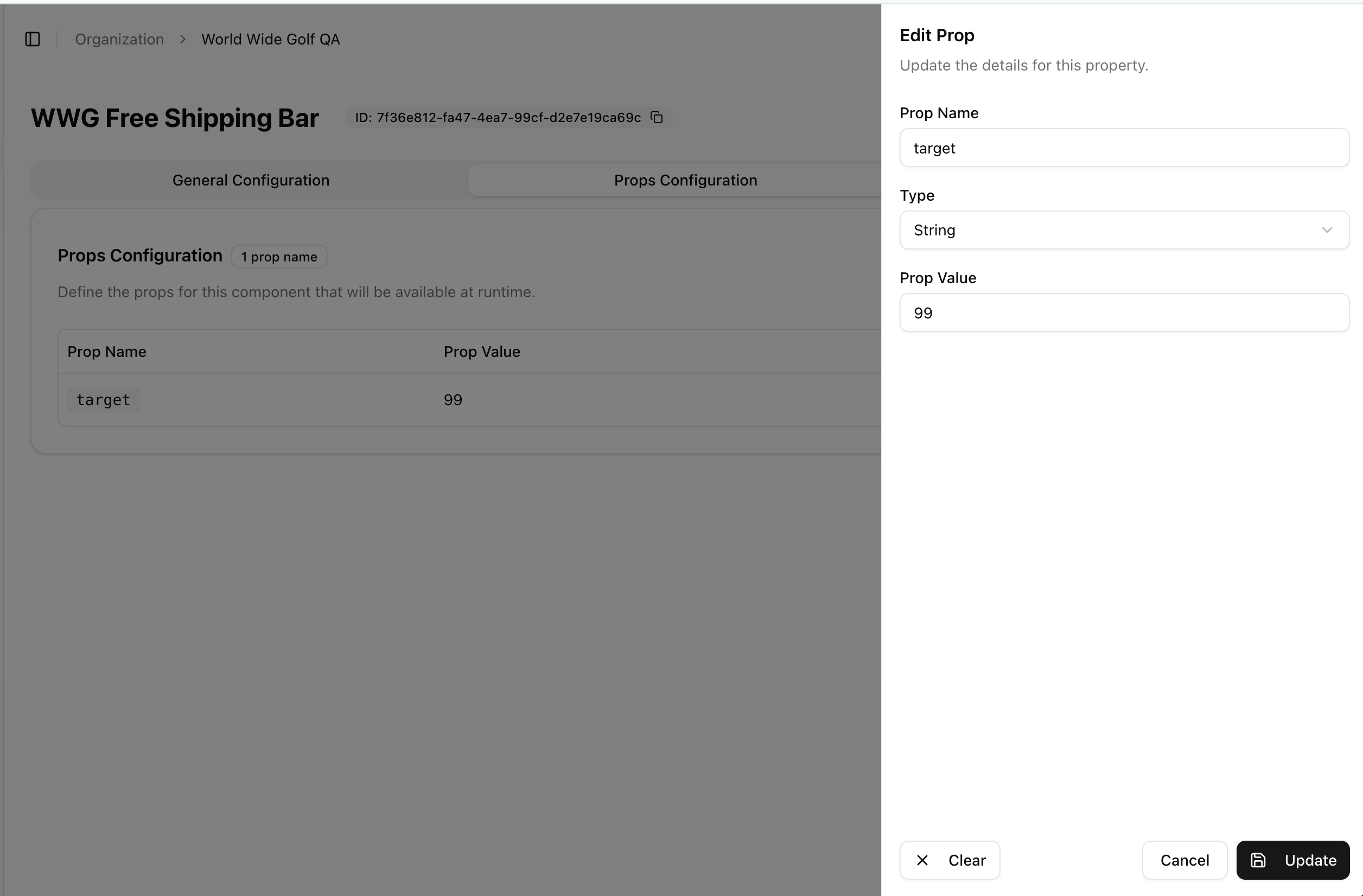
Instead of hard-coding the Free Shipping Tier directly in the code, use props to define the component behavior.
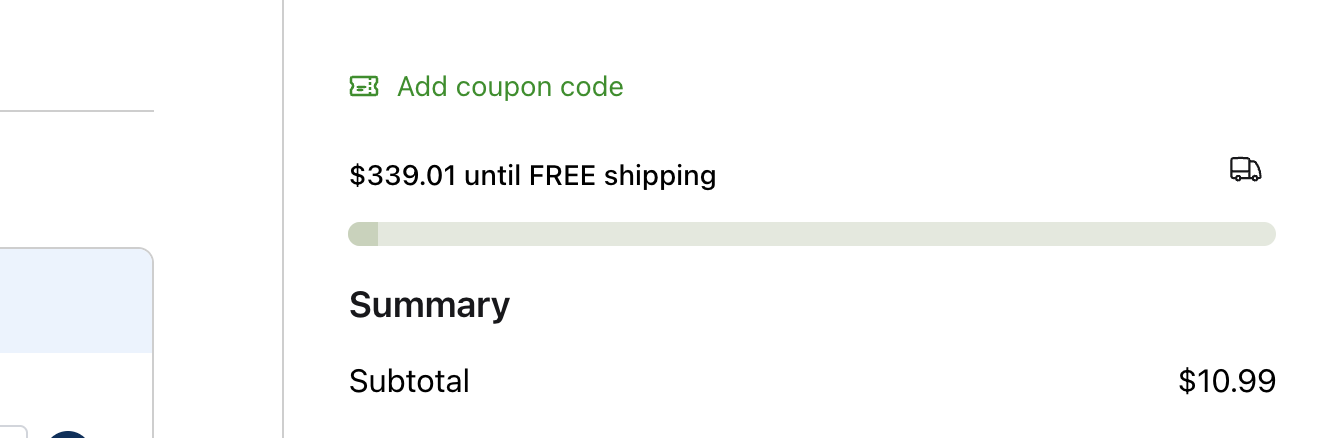
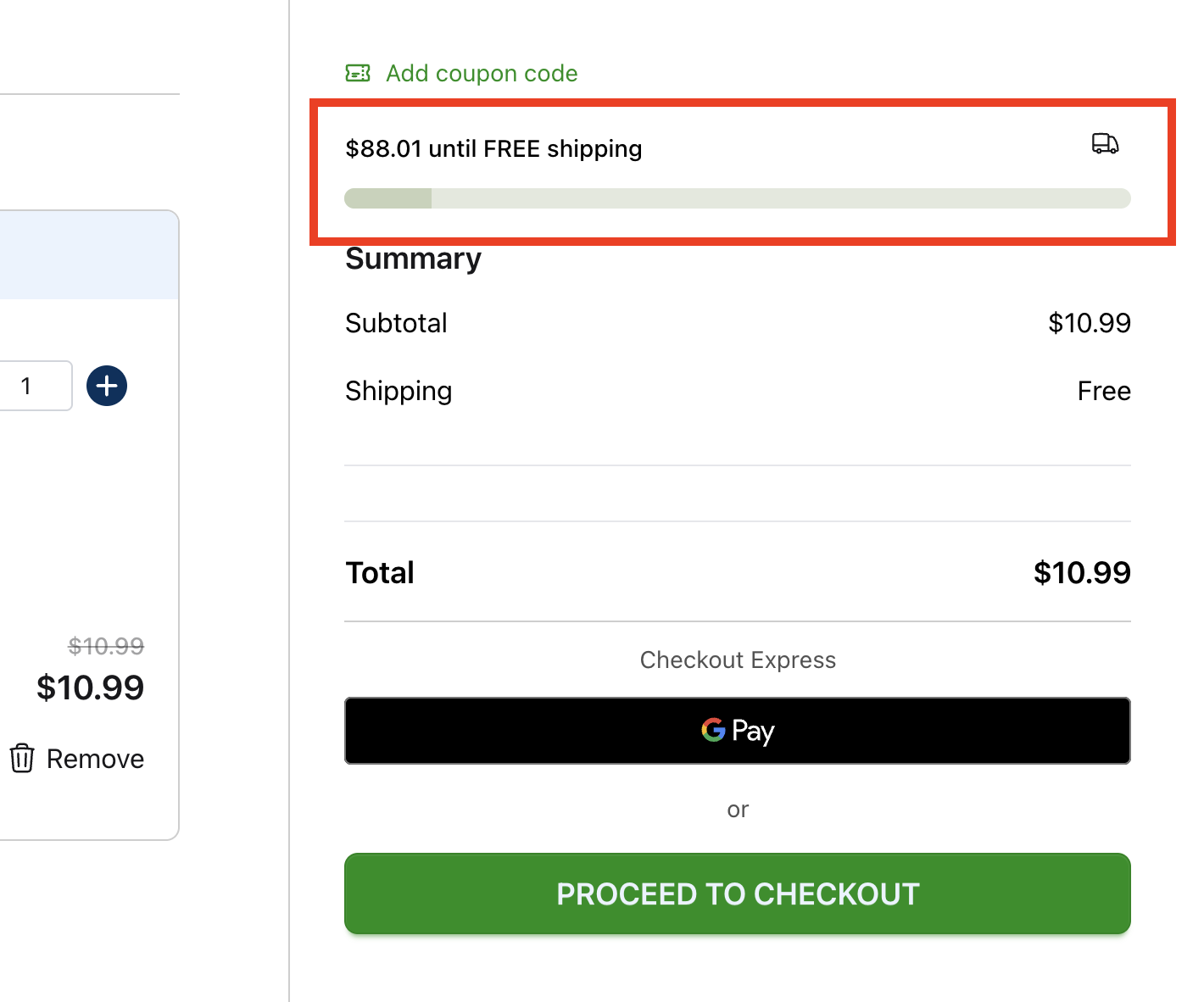
In this example the Free Shipping custom component has a default value of \$99.00 and let's assume that we need to change the Free Tier to \$350.00.
This is useful when you have a custom component but would like to abe able to change some of it's behaviour without needing to make code changes.
## Example - Free Shipping Progress Bar
Instead of hard-coding the Free Shipping Tier directly in the code, use props to define the component behavior.
In this example the Free Shipping custom component has a default value of \$99.00 and let's assume that we need to change the Free Tier to \$350.00.
 In the custom component code you can define a variable and via the admin you can assign a value that will override the hard-coded value in your code.
The snippet below is part of a Free Shipping Progress Bar (custom) component. The developer declared a variable named `target` and assgined a value of `99`, however it also declared that this component can receive props.
```typescript index.tsx theme={"system"}
// piece of component with the target prop
const FreeShippingProgress: React.FC = ({
target = 99,
...props
}) => {
```
When you configure props in the admin, you can name them and if there is a matching variable then the configured value will override the hard-coded one.
In the custom component code you can define a variable and via the admin you can assign a value that will override the hard-coded value in your code.
The snippet below is part of a Free Shipping Progress Bar (custom) component. The developer declared a variable named `target` and assgined a value of `99`, however it also declared that this component can receive props.
```typescript index.tsx theme={"system"}
// piece of component with the target prop
const FreeShippingProgress: React.FC = ({
target = 99,
...props
}) => {
```
When you configure props in the admin, you can name them and if there is a matching variable then the configured value will override the hard-coded one.
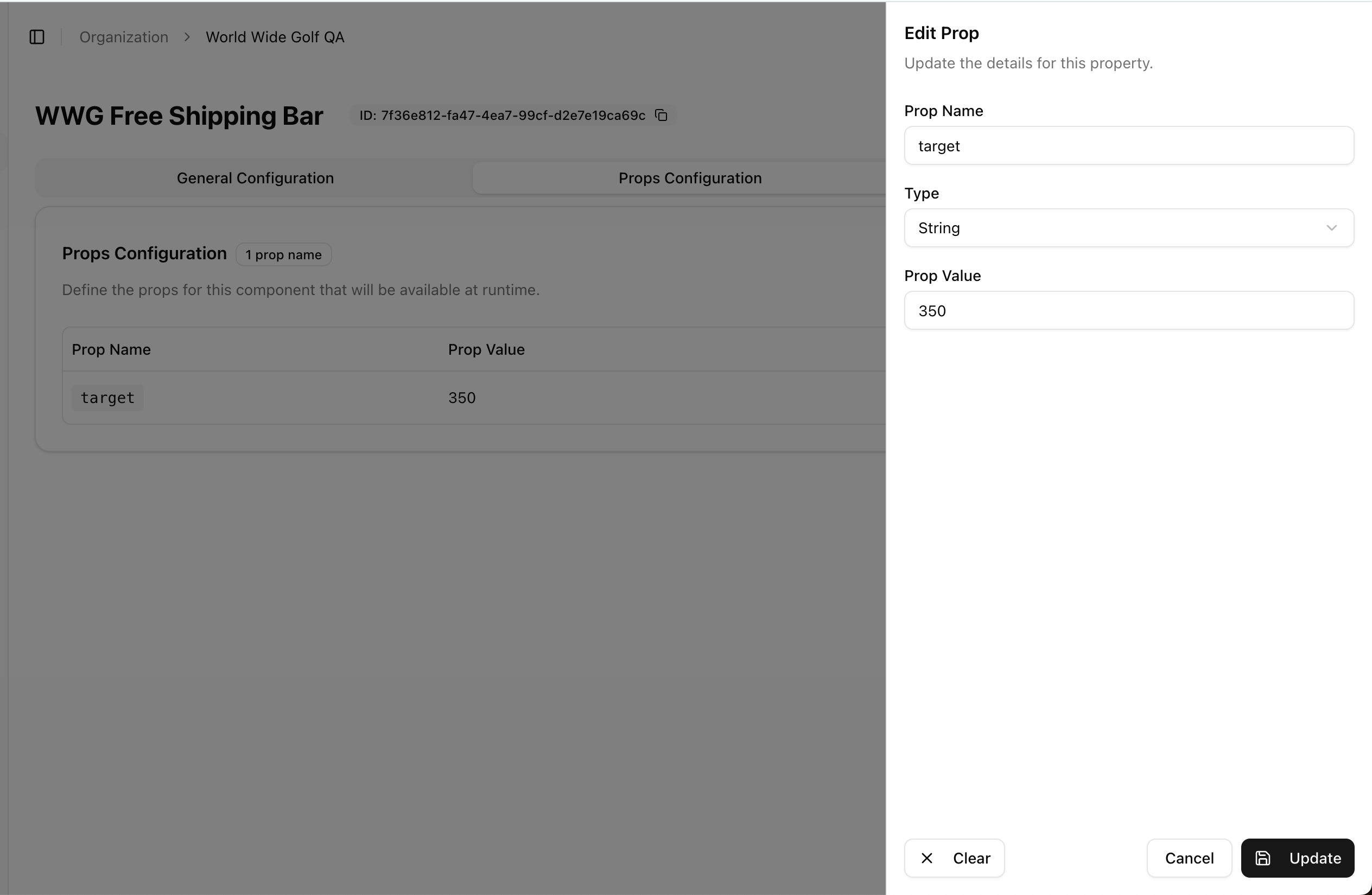 The result is the component will now use the configured prop `target=350` instead of the original (default) value of 99.