> ## Documentation Index
> Fetch the complete documentation index at: https://docs.ollie.shop/llms.txt
> Use this file to discover all available pages before exploring further.

# Children Component

> When you want to add a new component adjacent to an existing one without the need to re-create everything

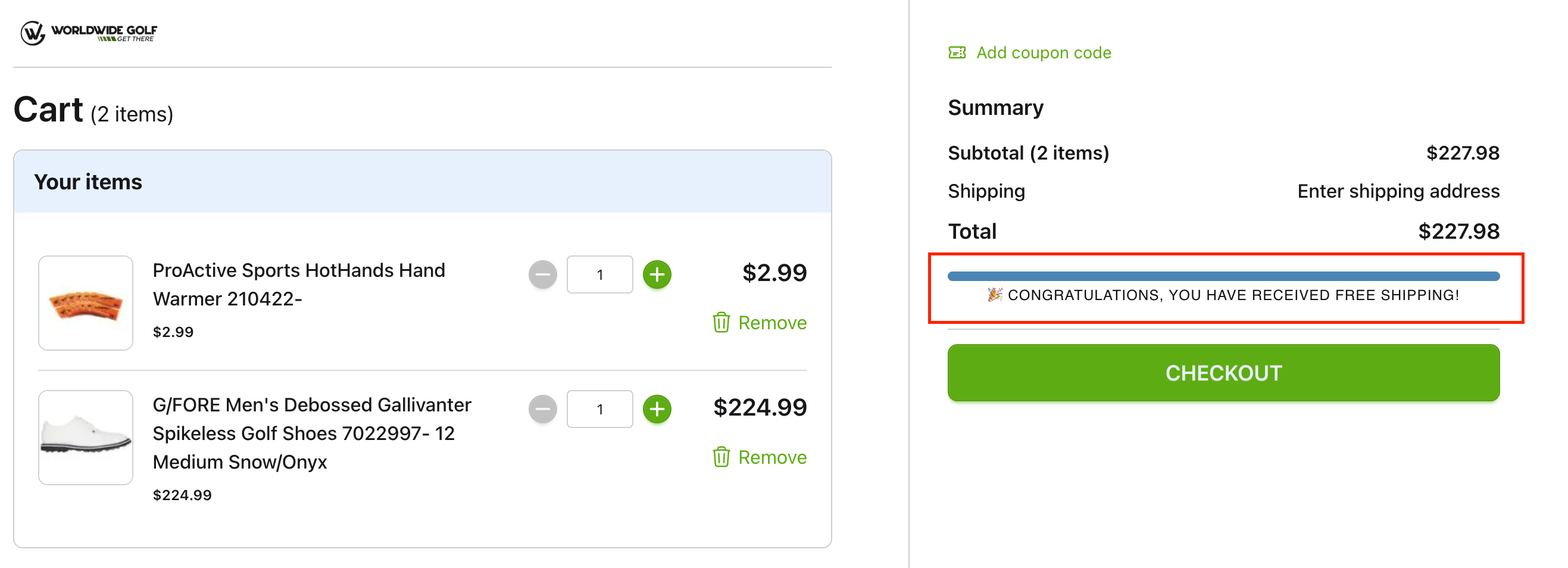
As an example let's build a `Free Shipping Progress Bar` and we'll include this custom component inside the Cart Summary slot.

<Frame>
  <img src="https://mintcdn.com/ollie/UatGh8GLCugPlVFB/images/free-shipping-progress-bar.png?fit=max&auto=format&n=UatGh8GLCugPlVFB&q=85&s=a577939c9582c11a12dc984d54ebe7ff" alt="Free Shipping Progress Bar Pn" width="2634" height="954" data-path="images/free-shipping-progress-bar.png" />
</Frame>

The basic HTML strucuture of a Free Shipping Progress Bar looks something like this:

```html index.tsx theme={"system"}
 return (
    <>
      <section className={styles.shippingBar}>
        <div className={styles.shippingBarProgress}>
          <div
            className={`${styles.shippingFill} ${shippingDetailBarClass}`}
            style={{ width: `${percentage}%` }}
            aria-valuenow={percentage}
            aria-valuemin={0}
            aria-valuemax={100}
            role="progressbar"
          />
        </div>
      </section>
    </>
  );
```

**In order for you to not re-create the entire Cart Summary component,** you can reuse the native Cart Summary as a *children* of your custom component, because the Cart Summary component is the default content of the `Cart Sidebar Totalizer` slot.

You can declare a `{children}` component directly in the HTML of your custom component.

```html index.tsx focus=3 theme={"system"}
 return (
    <>
      {children} // declare your children component
      <section className={styles.shippingBar}>
        <div className={styles.shippingBarProgress}>
          <div
            className={`${styles.shippingFill} ${shippingDetailBarClass}`}
            style={{ width: `${percentage}%` }}
            aria-valuenow={percentage}
            aria-valuemin={0}
            aria-valuemax={100}
            role="progressbar"
          />
        </div>
      </section>
    </>
  );
```

<Tip>
  You can declare a `children` at the beginning or at the end of your custom component
</Tip>

## Free Shipping Progress Bar - Full Example

In order to see the children feature in action let's create the Free Shipping Progress Bar and after that make the changes to include the children component.

<Info>
  This tutorial assumes you are able to create a [custom component](/ollie-shop/customization/custom-component) and also know how to use the [React Hooks](/ollie-shop/api/index) available in our SDK.
</Info>

<Steps>
  <Step title="Basic Free Shipping Progress Bar Component">
    Use this boilerplate as the base for your component

    ```typescript index.tsx expandable theme={"system"}
    import React from "react";
    import { useCheckoutSession } from "@ollie-shop/sdk";
    import styles from "./freeShippingProgress.module.css";

    interface FreeShippingProgressProps
      extends React.HTMLAttributes<HTMLElement> {
      target?: number
    }

    const FreeShippingProgress: React.FC<FreeShippingProgressProps> = ({
      target = 99
    }) => {
      const { rawSession: rawCart, updateSession } = useCheckoutSession() as {
        rawSession?: any;
        updateSession?: (...args: any[]) => any;
      };

      // Safely extract items total value (in cents) from the raw cart
      const itemsTotalCents: number = (() => {
        const totalizers = rawCart?.totalizers;
        if (!Array.isArray(totalizers)) return 0;

        const t = totalizers.find(
          (x: any) => x?.id === "Items" || x?.name === "Items Total"
        );
        return typeof t?.value === "number" ? t.value : 0;
      })();

      // Convert cents -> currency units
      const currentValue = itemsTotalCents / 100;

      // Protect against zero or invalid target
      const percentage =
        typeof target === "number" && target > 0
          ? Math.min((currentValue / target) * 100, 100)
          : 0;

      const missing = Math.max(target - currentValue, 0);

      const format = (value: number) =>
        new Intl.NumberFormat("en-US", {
          style: "currency",
          currency: "USD",
        }).format(value);

      // styles might not include shippingDetailBar in your CSS module mapping,
      // so we cast to any when referencing it to prevent TS errors.
      const shippingDetailBarClass =
        // prefer typed property if present, otherwise fallback to empty string
        (styles as any).shippingDetailBar ?? "";

      return (
        <>
          <section className={styles.shippingBar}>
            <div className={styles.shippingBarProgress}>
              <div
                className={`${styles.shippingFill} ${shippingDetailBarClass}`}
                style={{ width: `${percentage}%` }}
                aria-valuenow={percentage}
                aria-valuemin={0}
                aria-valuemax={100}
                role="progressbar"
              />
            </div>
            <p>
              {missing > 0
                ? `You are ${format(missing)} away from receiving Free Shipping`
                : "🎉 Congratulations, you have received free shipping!"}
            </p>
          </section>
        </>
      );
    };

    export default FreeShippingProgress;
    ```
  </Step>

  <Step title="Declare the children type">
    The children is also a react component, so we must also declare it as an `interface`

    ```typescript index.tsx focus=4,8 theme={"system"}
    interface FreeShippingProgressProps
      extends React.HTMLAttributes<HTMLElement> {
      target?: number;
      children?: React.ReactNode;
    }

    const FreeShippingProgress: React.FC<FreeShippingProgressProps> = ({
      children,
      target = 99
    }) => {
      const { rawSession: rawCart, updateSession } = useCheckoutSession() as {
        rawSession?: any;
        updateSession?: (...args: any[]) => any;
      };
    ```
  </Step>

  <Step title="Insert the children component in the HTML">
    Include the children in the HTML part of your component (as in the beginning of this tutorial)

    ```html index.tsx focus=5 theme={"system"}
    ...
     
    return (
        <>
          {children} // declare your children component
          <section className={styles.shippingBar}>
            <div className={styles.shippingBarProgress}>
              <div
                className={`${styles.shippingFill} ${shippingDetailBarClass}`}
                style={{ width: `${percentage}%` }}
                aria-valuenow={percentage}
                aria-valuemin={0}
                aria-valuemax={100}
                role="progressbar"
              />
            </div>
      		<p>
              {missing > 0
                ? `You are ${format(missing)} away from receiving Free Shipping`
                : "🎉 Congratulations, you have received free shipping!"}
            </p>
          </section>
        </>
      );
    ```
  </Step>

  <Step title="Declare which native component is the children">
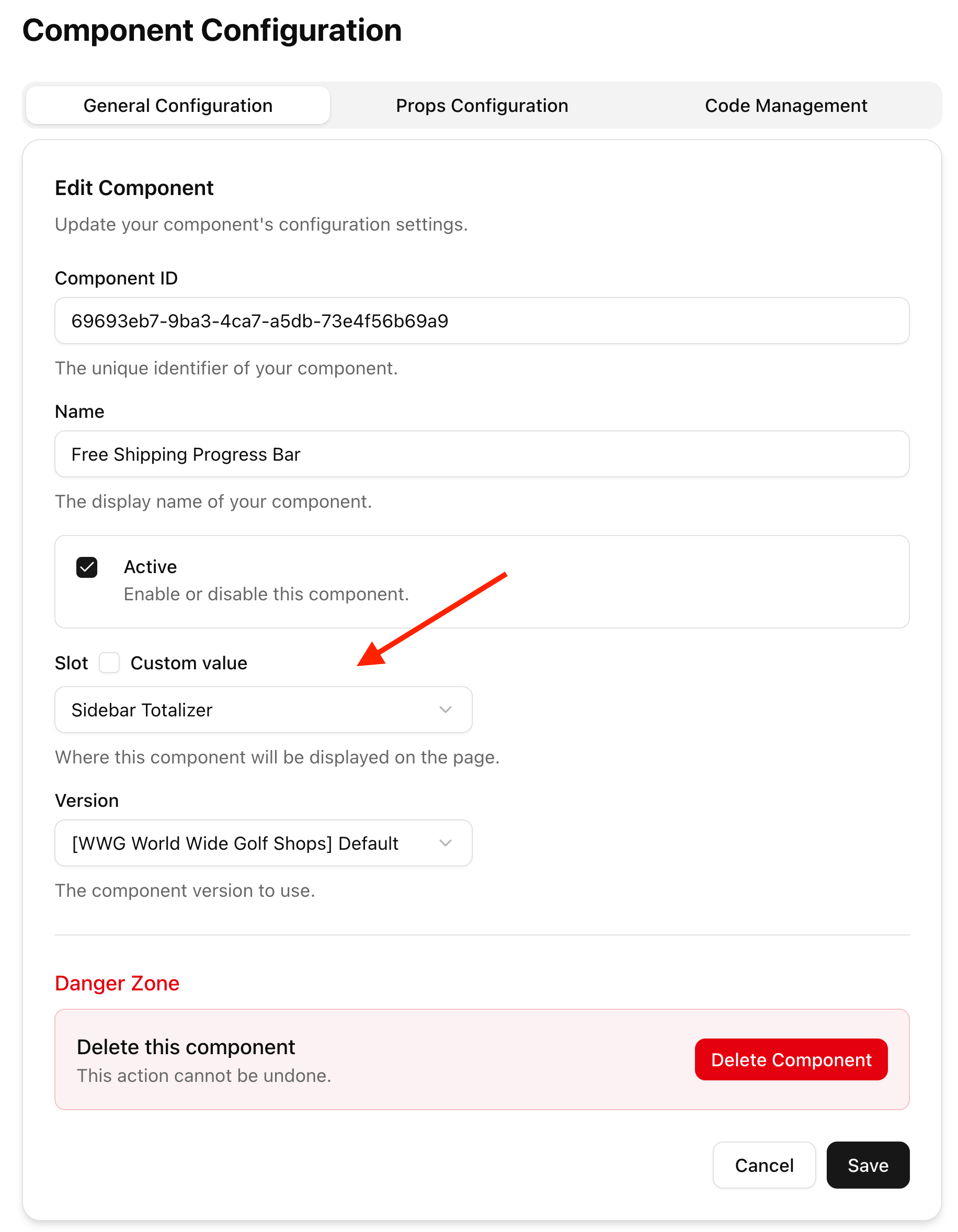
    You must have noticed that until know we don't actually know what is the component that is the children.

    When you upload your component you'll assign the component to a Slot, the native component in this slot will become your children

    <Frame>
      <img src="https://mintcdn.com/ollie/UatGh8GLCugPlVFB/images/free-shipping-progress-bar-slot.png?fit=max&auto=format&n=UatGh8GLCugPlVFB&q=85&s=95bad8a097d8d37e6be6841677e9d317" alt="Free Shipping Progress Bar Slot Pn" width="1832" height="2356" data-path="images/free-shipping-progress-bar-slot.png" />
    </Frame>
  </Step>
</Steps>
