> ## Documentation Index
> Fetch the complete documentation index at: https://docs.ollie.shop/llms.txt
> Use this file to discover all available pages before exploring further.
# Translations
> Change text and apply translations by locale
If you want to change the text of a native component you don't have to create a custom component just for translation purposes. Ollie Shop comes with the feature that allows you to manipulate text via configuration.
## Ollie Shop *Messages*
Every string in Ollie Shop can be personalized, even from native Ollie Components. To make it easy for you to change the text on any native component we created a variable to represent each text. There is no way we can list all of them, but it's very easy to find out what is the variable name for any given string.
#### Steps
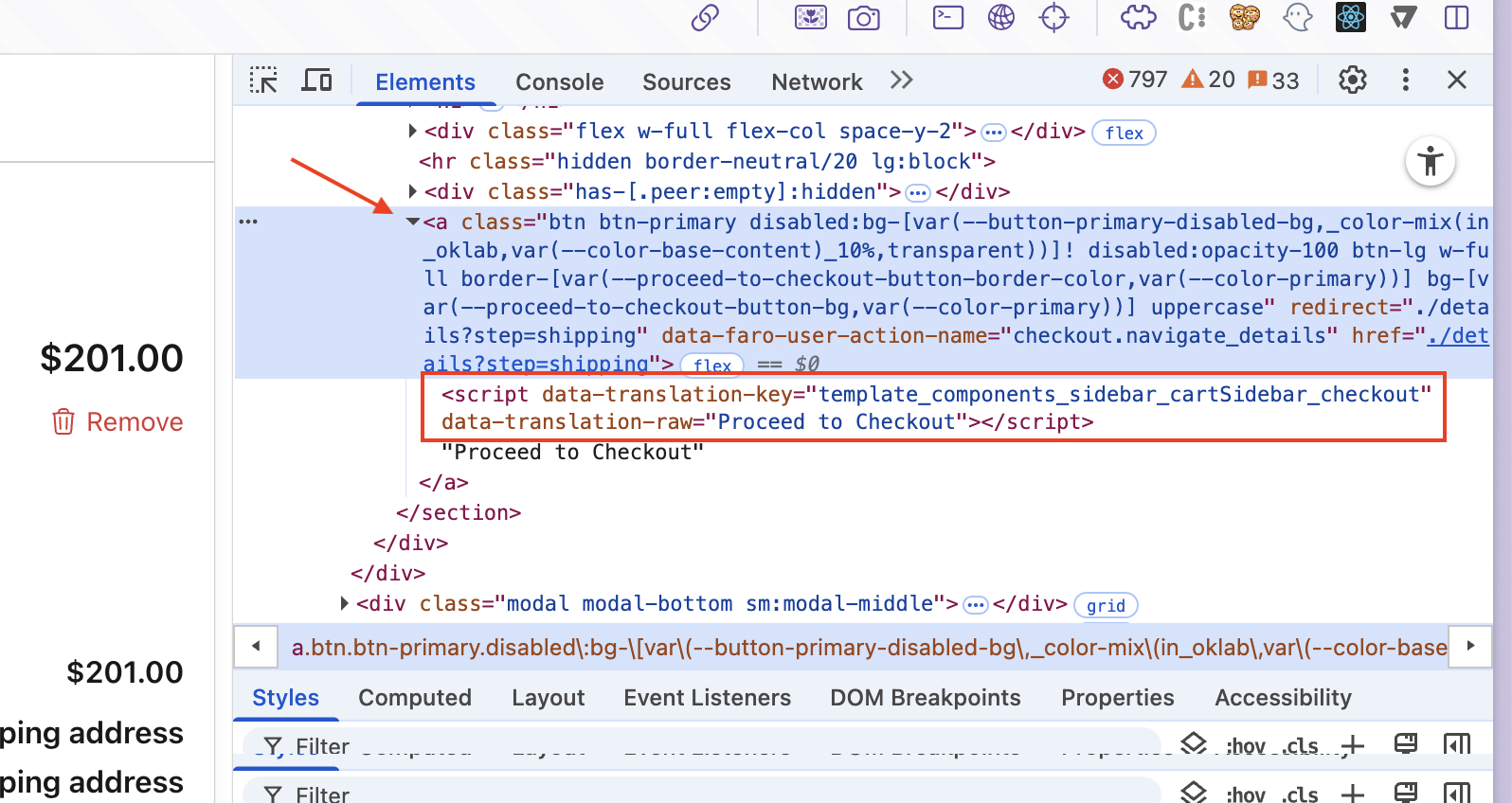
1. Open any checkout page in your browser.
2. Right-click on an element that contains a customizable text and select Inspect.
3. In the browser DevTools, go to the Elements tab.
4. Expand the selected HTML node. You will find the custom text metadata attributes applied to the element, immediately before or alongside the rendered text.
 ## Metadata attributes
Each customizable text includes the following attributes:
| id | | Description | Usage |
| :--------------------------- | --------- | :----------------------------------------- | :--------------------------------------------------------------------------------------------------------------------------------------------------------- |
| `data-translation-key` | mandatory | Unique identifier of the message | Use this key to customize the text in the **Admin Dashboard → Messages** section. |
| `data-translation-raw` | mandatory | The original, unprocessed message template | This value does **not** include the final rendered text. Instead, it shows the message with its variable placeholders as defined by the translation system |
| `data-translation-variables` | optional | Defines the variables used by the message | - Dynamic values (e.g. item counts, prices) - Pluralization rules - Rich text or conditional content |
In the image below, the message uses **cardinal pluralization** provided by the `next-intl` library.
## Metadata attributes
Each customizable text includes the following attributes:
| id | | Description | Usage |
| :--------------------------- | --------- | :----------------------------------------- | :--------------------------------------------------------------------------------------------------------------------------------------------------------- |
| `data-translation-key` | mandatory | Unique identifier of the message | Use this key to customize the text in the **Admin Dashboard → Messages** section. |
| `data-translation-raw` | mandatory | The original, unprocessed message template | This value does **not** include the final rendered text. Instead, it shows the message with its variable placeholders as defined by the translation system |
| `data-translation-variables` | optional | Defines the variables used by the message | - Dynamic values (e.g. item counts, prices) - Pluralization rules - Rich text or conditional content |
In the image below, the message uses **cardinal pluralization** provided by the `next-intl` library.
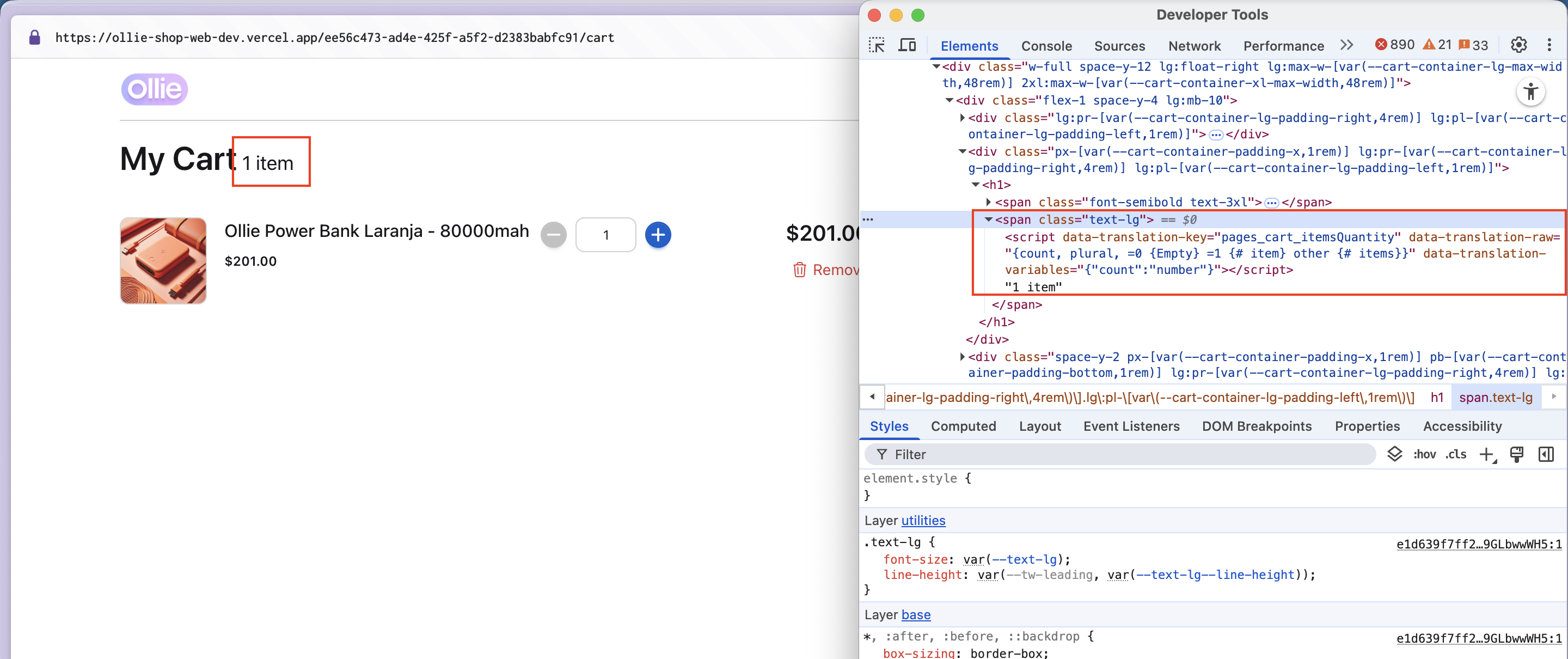 For more details about pluralization and message formatting, refer to the official `next-intl` documentation [here](https://next-intl.dev/docs/usage/translations#cardinal-pluralization).
Alternatively you can use the [Ollie Devtools](https://docs.ollie.shop/ollie-shop/cheat-sheet/Devtools-custom-text) to quickly find the text you want to customize.
## Changing a text or adding a translation
### Native Components
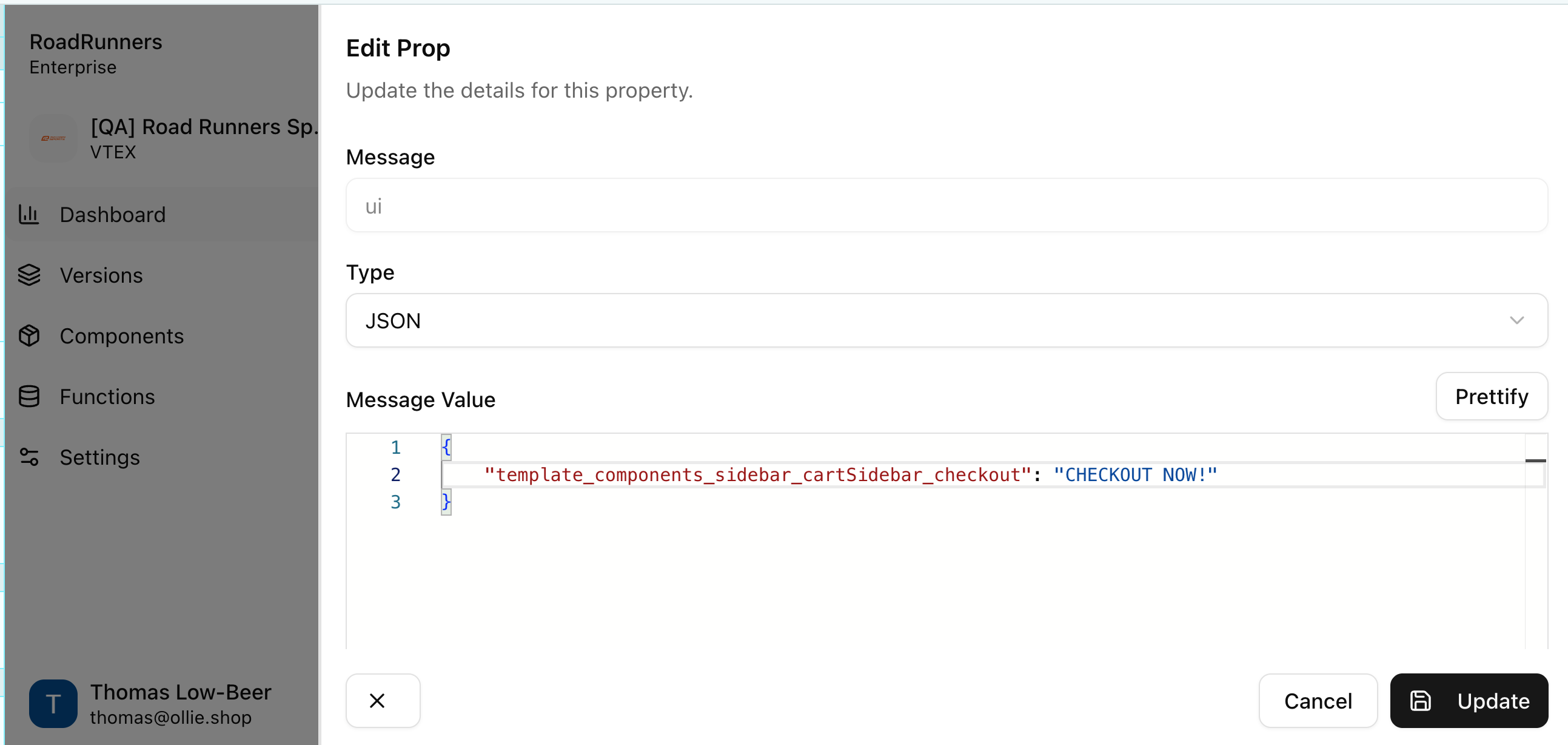
As an example let's change the text insde the "Checkout" button of the cart page
For more details about pluralization and message formatting, refer to the official `next-intl` documentation [here](https://next-intl.dev/docs/usage/translations#cardinal-pluralization).
Alternatively you can use the [Ollie Devtools](https://docs.ollie.shop/ollie-shop/cheat-sheet/Devtools-custom-text) to quickly find the text you want to customize.
## Changing a text or adding a translation
### Native Components
As an example let's change the text insde the "Checkout" button of the cart page
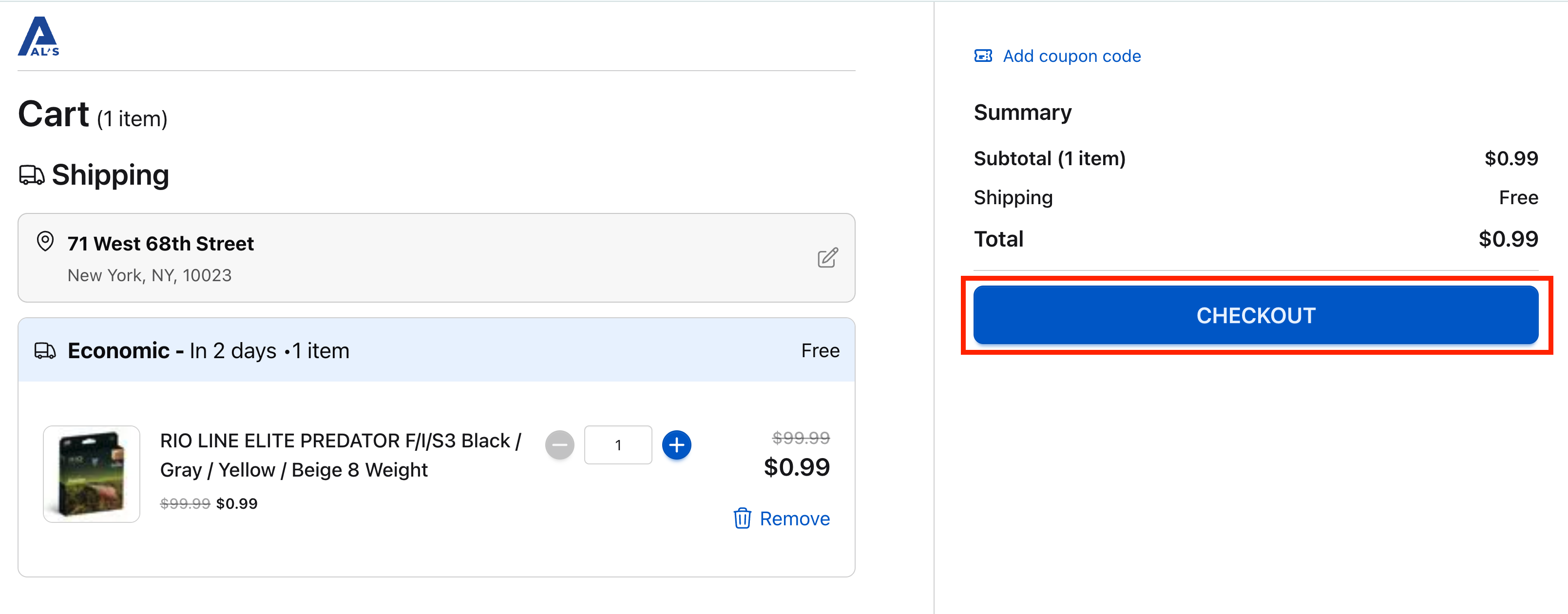 We must identify the name of this component and where it is positioned in the template. An easy way to do this is to inspect the element via your browser as explained above.
On your Version you'll edit your UI Messages Configuration and include the new text.
We must identify the name of this component and where it is positioned in the template. An easy way to do this is to inspect the element via your browser as explained above.
On your Version you'll edit your UI Messages Configuration and include the new text.
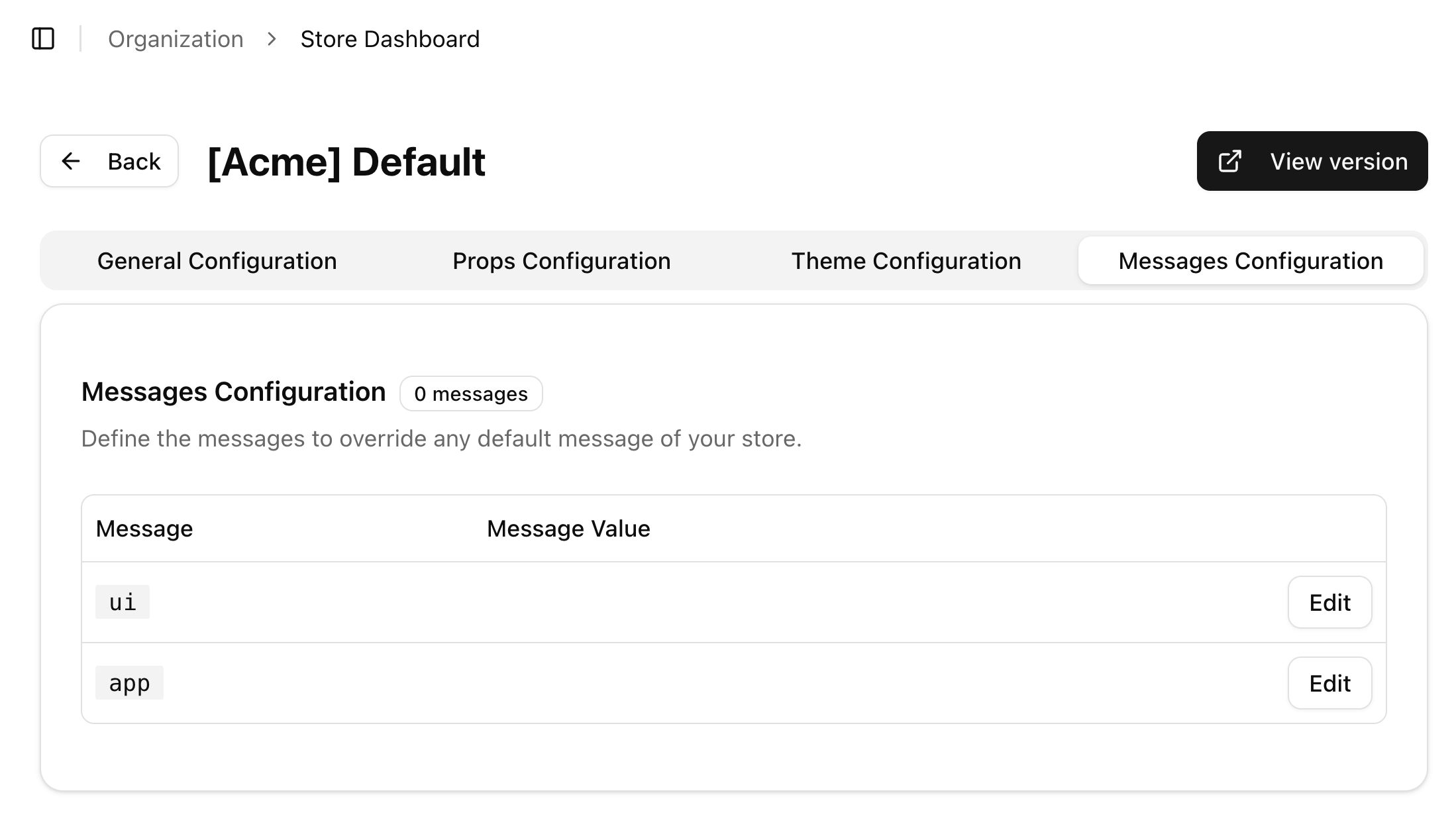 An editor will appear where you'll be able to insert your custom text. You must include the language you want your change to be applied, as well as the details of your component.
 ### Adding a Translation to a native text
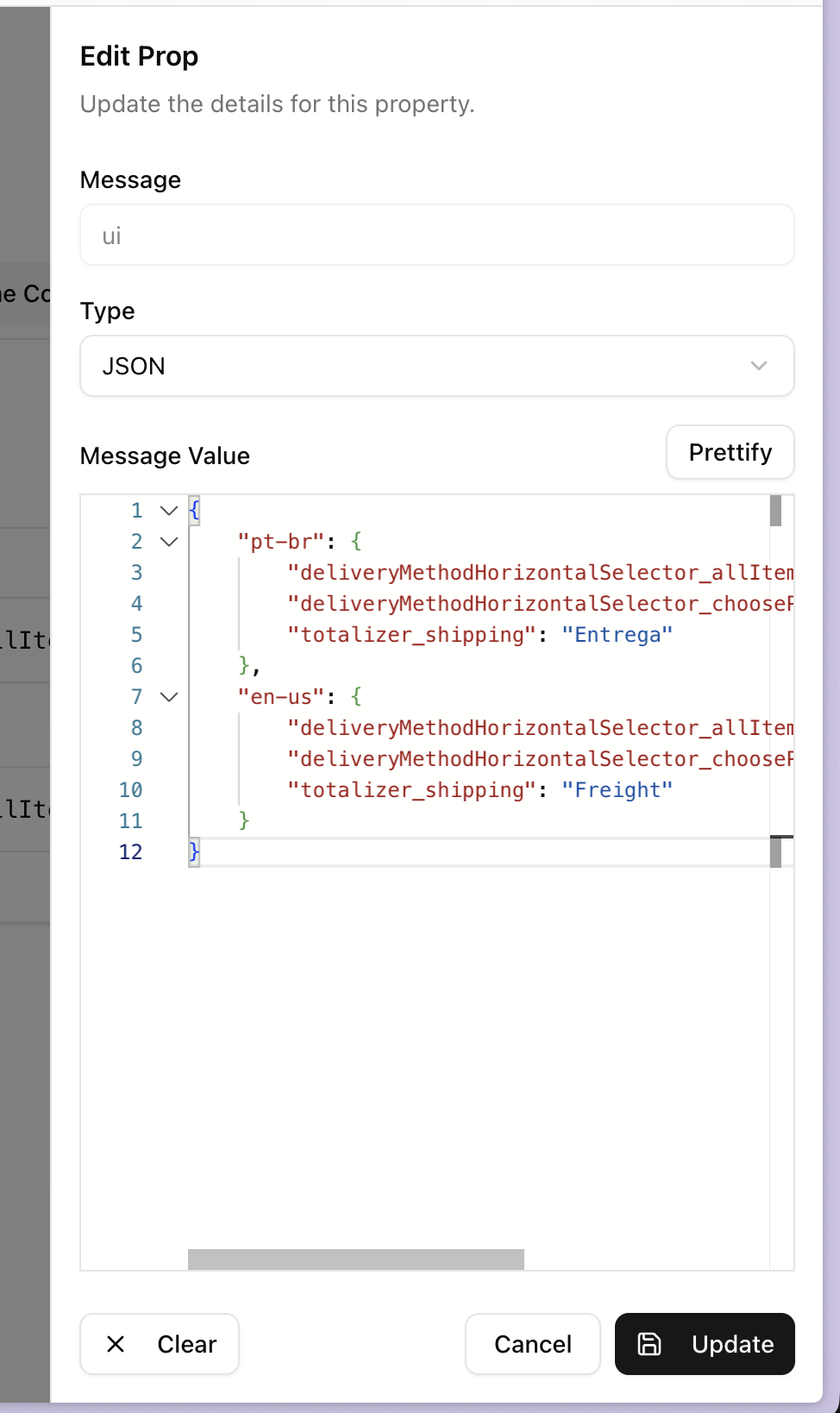
Translations happen the same way. Translations are nothing but changes to native texts.
### Adding a Translation to a native text
Translations happen the same way. Translations are nothing but changes to native texts.
 ### Custom Components
Translations can also be applied to custom components, the pattern is the same, the only difference is that you'll have an object specific for custom components
```json theme={"system"}
{
"messages": {
"custom": {
"en-US": {
"myCustomComponent": {
"button": "Add Your Text Here",
}
}
}
}
}
```
### Custom Components
Translations can also be applied to custom components, the pattern is the same, the only difference is that you'll have an object specific for custom components
```json theme={"system"}
{
"messages": {
"custom": {
"en-US": {
"myCustomComponent": {
"button": "Add Your Text Here",
}
}
}
}
}
```