> ## Documentation Index
> Fetch the complete documentation index at: https://docs.ollie.shop/llms.txt
> Use this file to discover all available pages before exploring further.
# Fonts
> Include your font to match your checkout with the rest of your website
## Admin Configuration
A Version carries the full set of configurations of your checkout, so fonts are also configured at the version level.
1. **Navigate** to your version in the admin dashboard
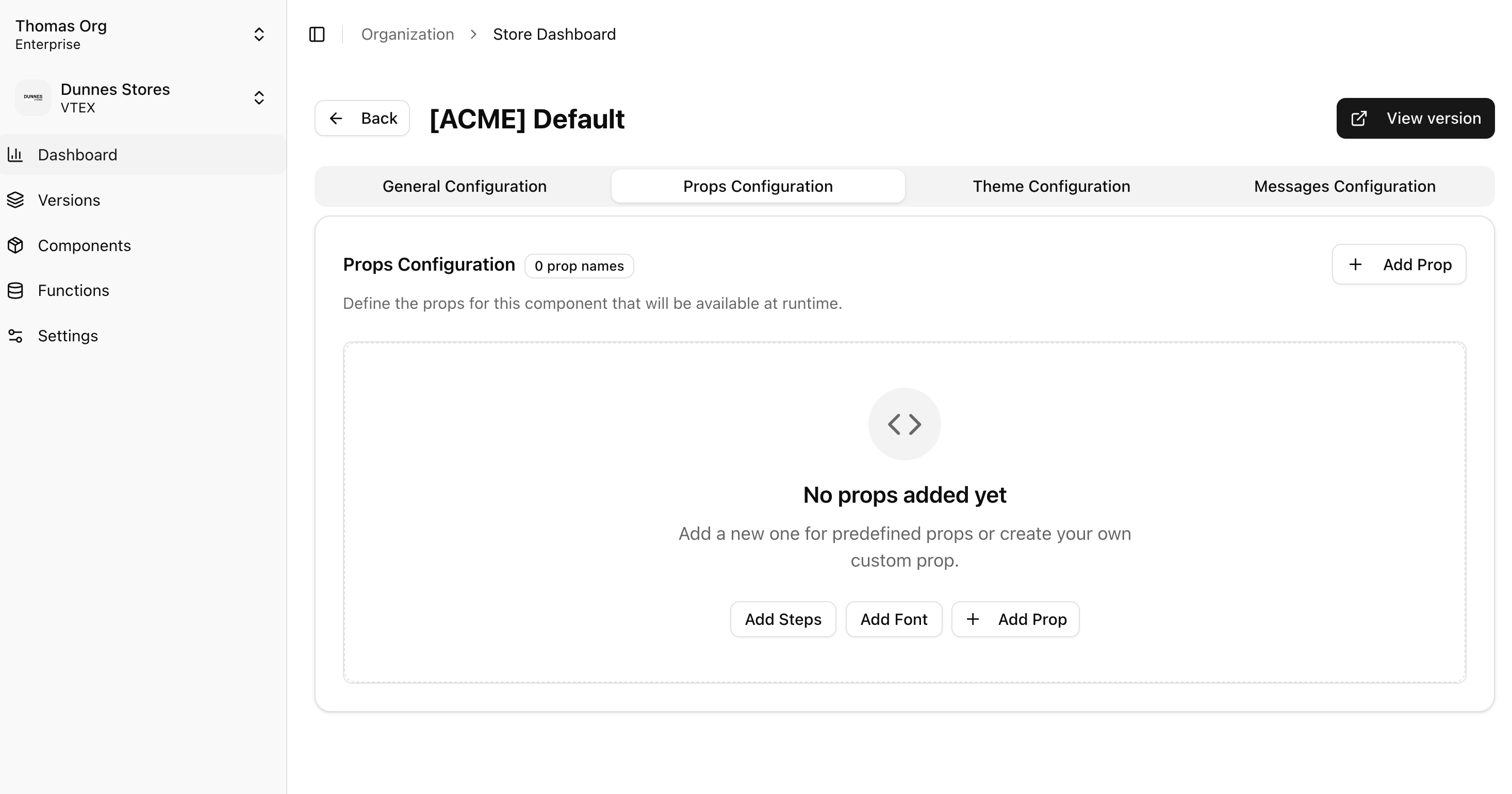
2. **Click** the **Props Configuration** tab
3. **Click** `Add Font`
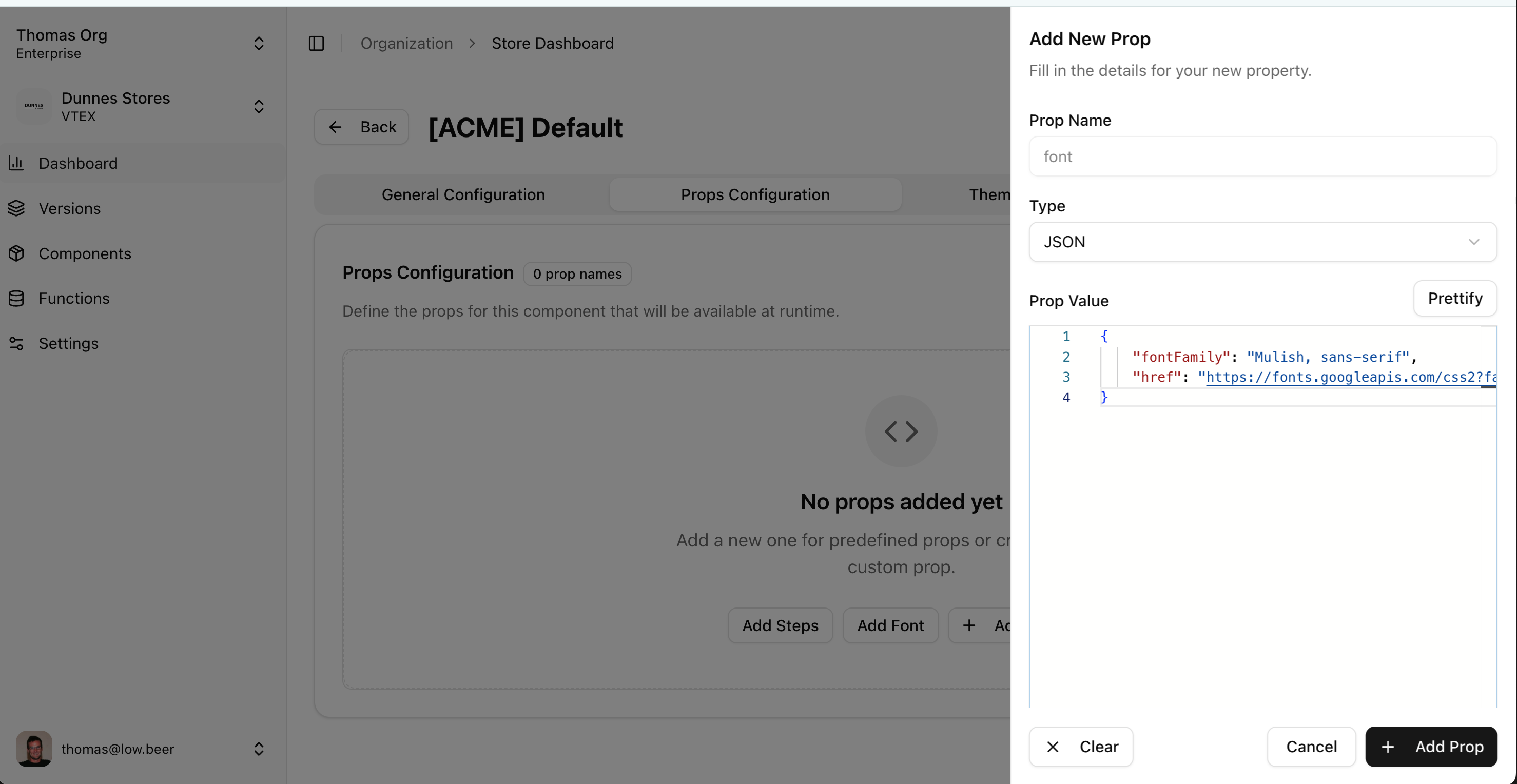
 4. **Add your font**
Fonts are always in a JSON format
```json theme={"system"}
{
"fontFamily": "Mulish, sans-serif",
"href": "https://fonts.googleapis.com/css2?family=Mulish:ital,wght@0,200..1000;1,200..1000&display=swap"
}
```
4. **Add your font**
Fonts are always in a JSON format
```json theme={"system"}
{
"fontFamily": "Mulish, sans-serif",
"href": "https://fonts.googleapis.com/css2?family=Mulish:ital,wght@0,200..1000;1,200..1000&display=swap"
}
```