> ## Documentation Index
> Fetch the complete documentation index at: https://docs.ollie.shop/llms.txt
> Use this file to discover all available pages before exploring further.
# Components
> React apps written in TypeScript
Ollie Shop works with Templates, which is nothing but a pre-defined set of slots. In each Slot goes a Component. This way you can change compoennts wihtout having to worry about re-buidling your checkout.
Take a look at our [onboarding tutorial](/ollie-shop/get-started/quickstart) and learn how create and deploy a custom component
## Component Architecture
Components follow a simple pattern:
```typescript index.tsx theme={"system"}
import { useCheckoutSession, useStoreInfo } from "@ollie-shop/sdk";
export default function MyComponent() {
import React from "react";
// Access live checkout data
const { session } = useCheckoutSession();
const { theme } = useStoreInfo();
return (
);
}
```
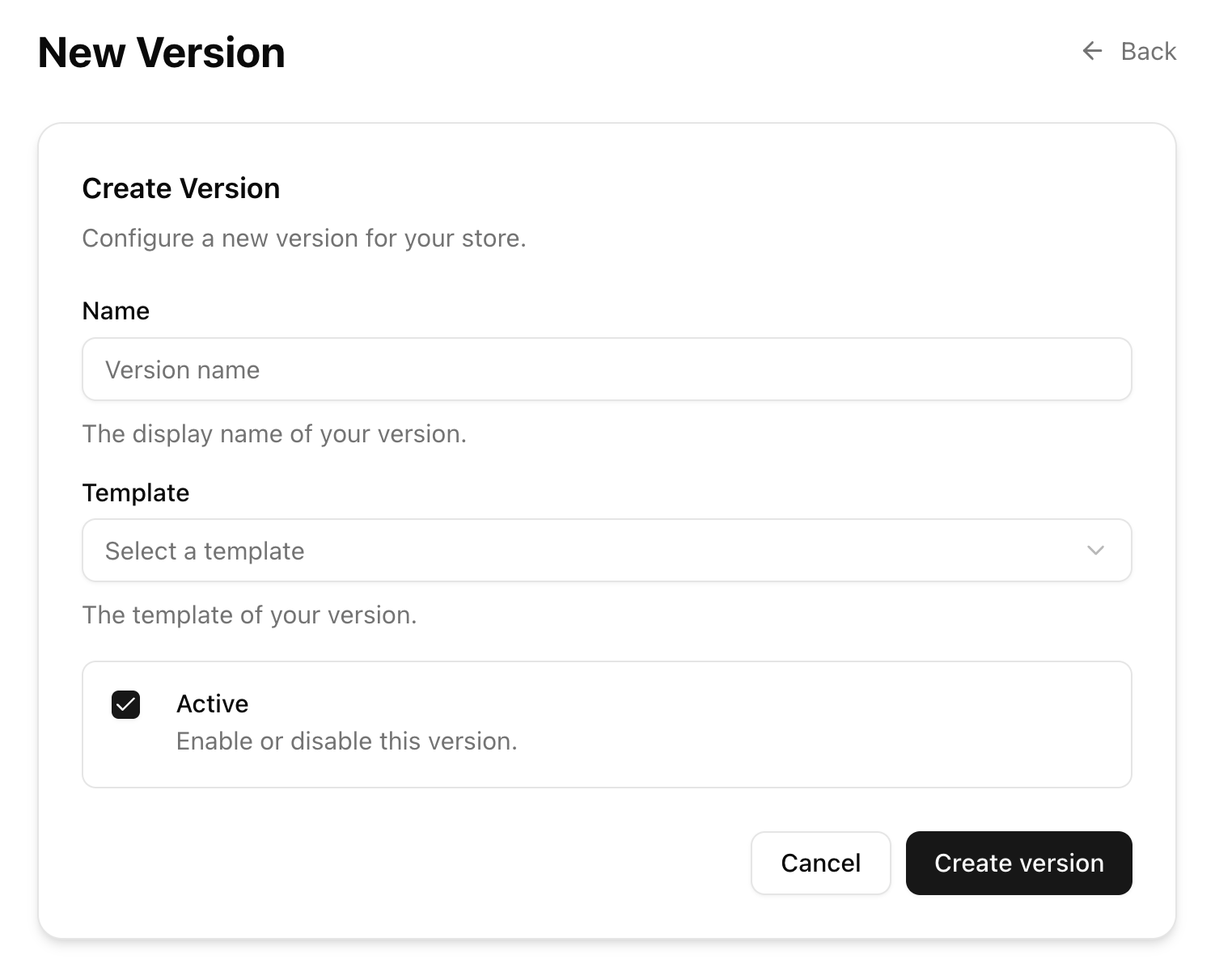
## Creating Components
Components are created through the admin dashboard:
1. `Name` - Descriptive component name
2. `Slot` - Where the component will appear
3. `Version` - Which store version to deploy to
4. `Status` - Active/inactive
 1. `Name` - Descriptive component name
2. `Slot` - Where the component will appear
3. `Version` - Which store version to deploy to
4. `Status` - Active/inactive
1. `Name` - Descriptive component name
2. `Slot` - Where the component will appear
3. `Version` - Which store version to deploy to
4. `Status` - Active/inactive